How to Pay a Bill to a Billing Organisation at OCBC
Pay a bill to a billing organisation — one-off, future-dated or recurring — in the OCBC app or OCBC Internet Banking.
 Singapore
Agent guide. Use these steps to walk the client through the process — the screenshots show exactly what they’ll see on screen.
Pay a bill to a billing organisation (utilities, telco, government agencies and more) in the OCBC app or on OCBC Internet Banking. You can pay now, schedule a future-dated payment, or set up a recurring payment.
Before you start
- The OCBC app, or access to OCBC Internet Banking
- Your access code and PIN (or fingerprint ID / Singpass on the app)
- The billing organisation's name and your bill reference / account number
💡 Tip: Add a billing organisation once and reuse it. A recurring payment or standing instruction pays the bill automatically each cycle — useful for utilities and subscriptions.
Frequently asked questions
Can I schedule a future or recurring payment?
Yes — choose a future start date, or set a recurring schedule with a frequency and number of payments.
What do I need to add a biller?
The billing organisation's name and your bill reference / account number with that biller.
- 1
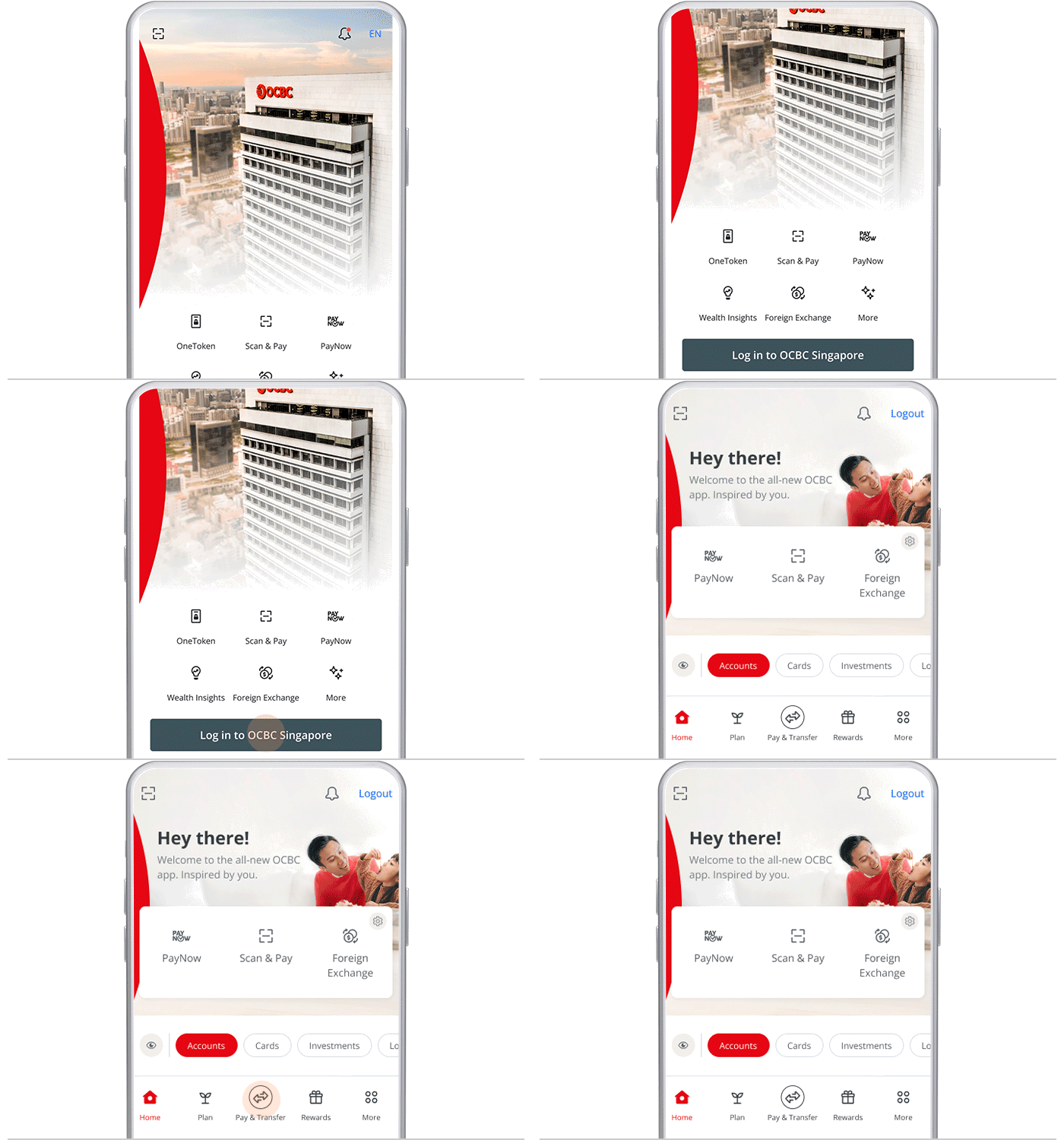
Log in and open Pay & Transfer
Log in to the OCBC app and tap "Pay & Transfer" at the bottom navigation bar.
- 2
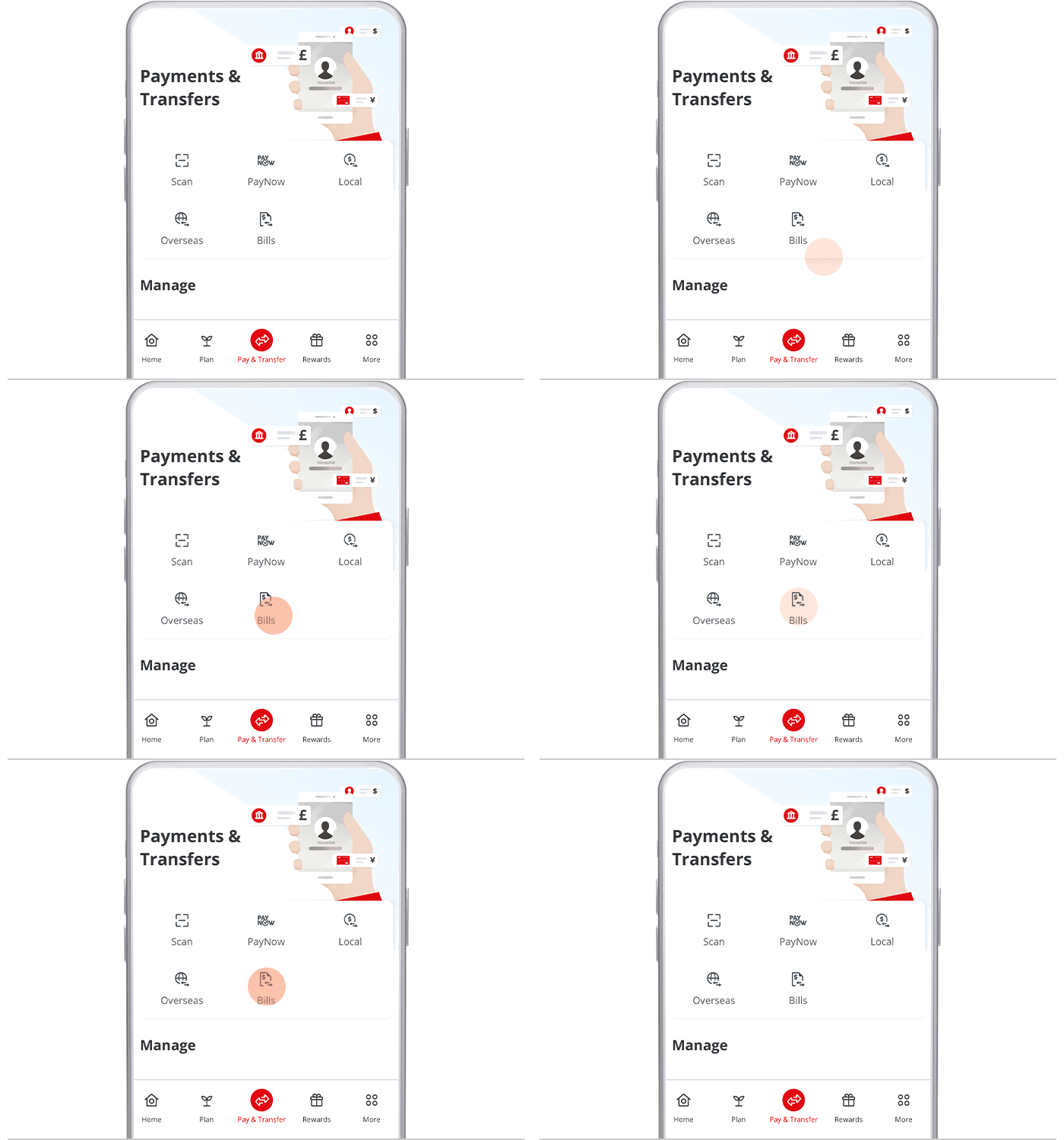
Open Bills
Tap "Bills".
- 3
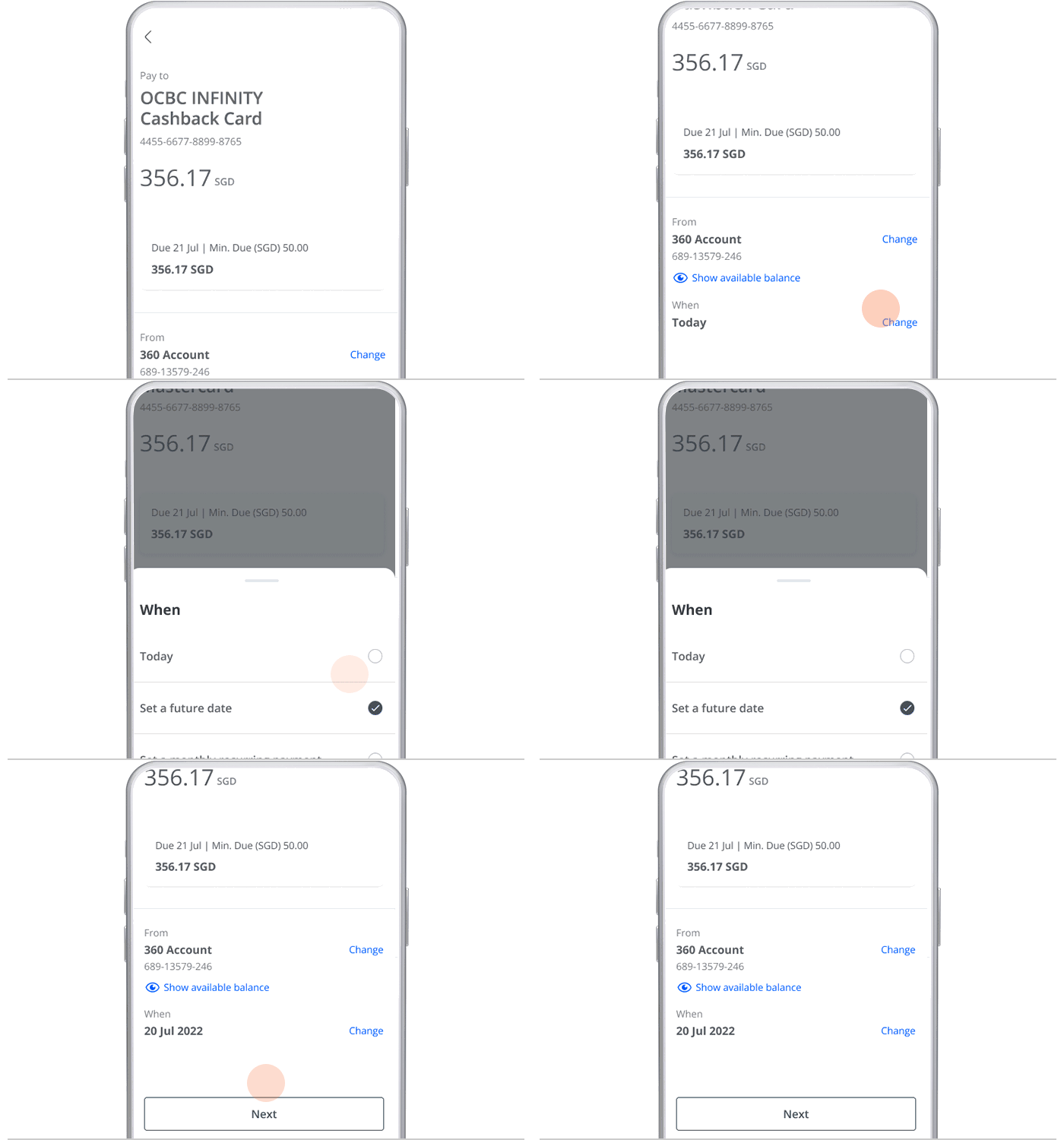
Choose the biller and schedule
Choose the billing organisation you wish to pay, enter your bill reference and amount, set up your payment schedule, and tap "Next".
- 4
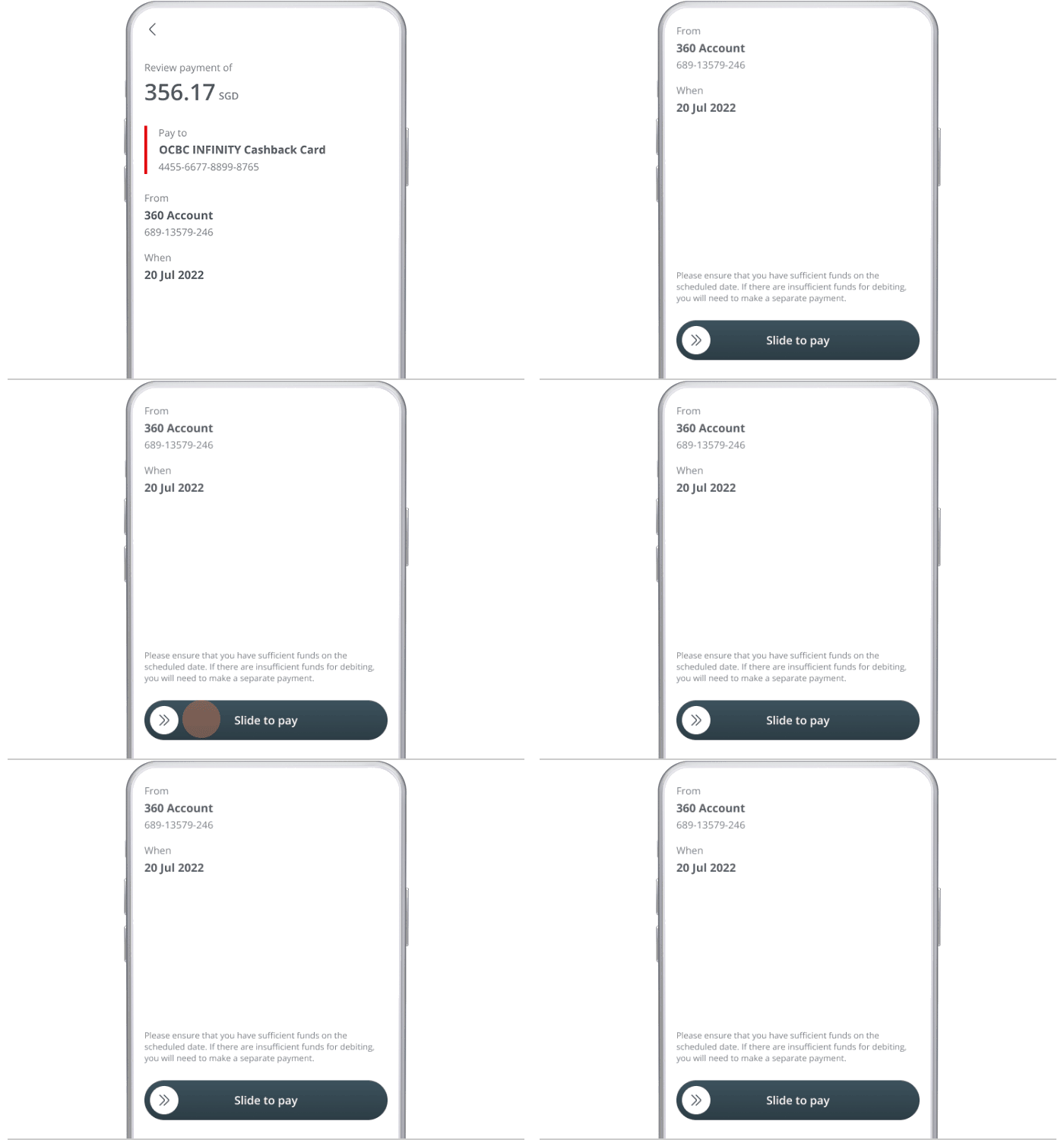
Review
Review the details before confirming the payment.
- 5
Done
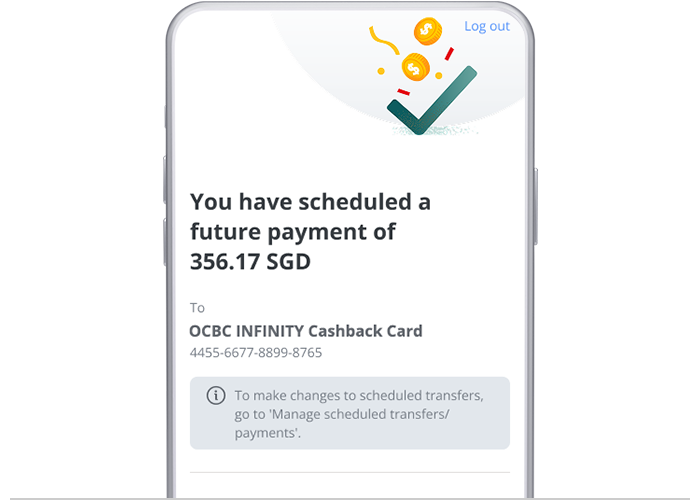
And you're done!
- 1
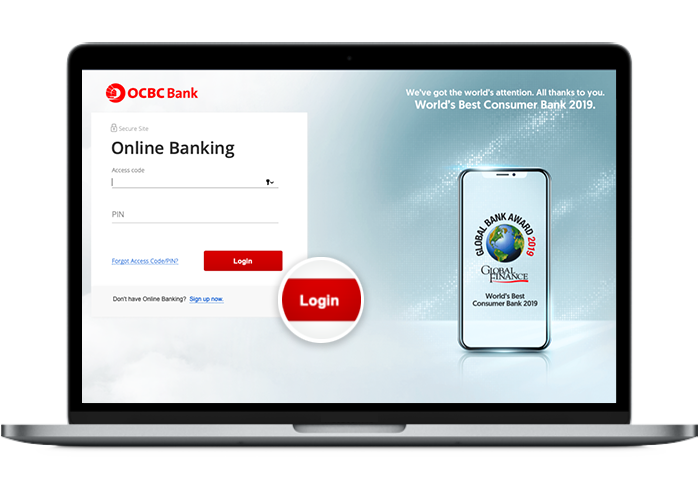
Log in to Online Banking
Log in with your access code and PIN.
- 2
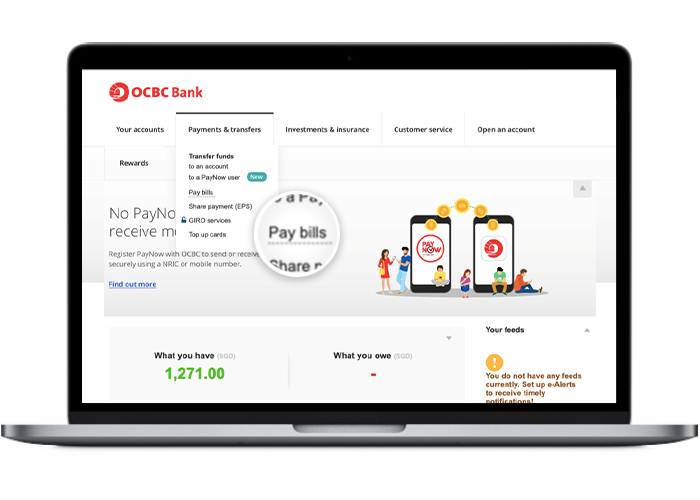
Open Pay bills
Click "Payments & transfers" and select "Pay bills".
- 3
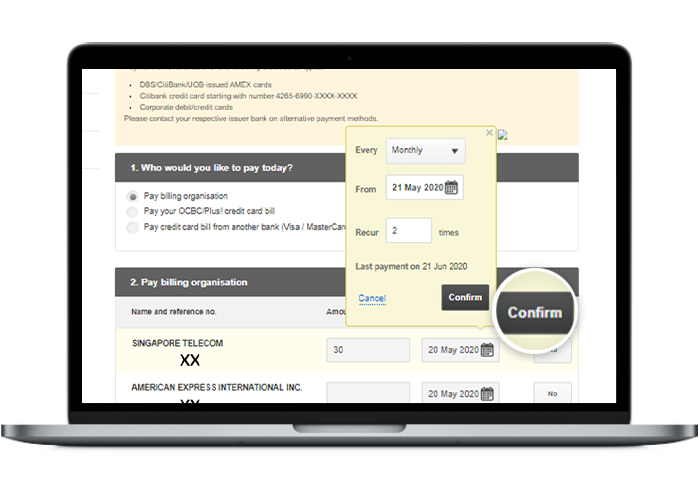
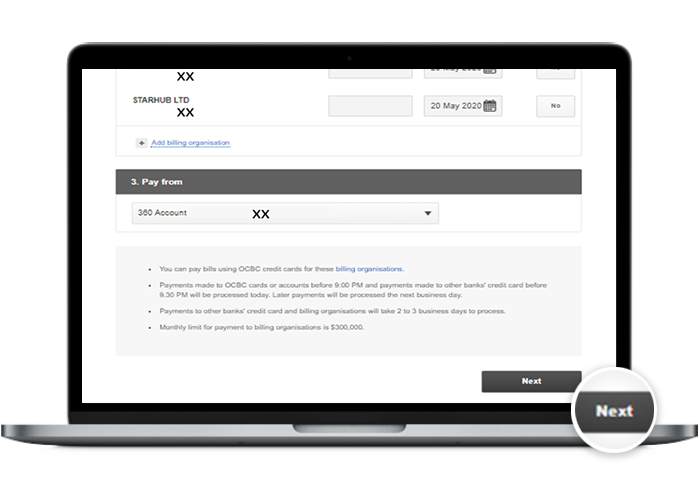
Set the schedule
Choose the biller, then select the frequency, the date to begin, and the number of times you'd like the payment to occur.
- 4
Continue
Click "Next".
- 5
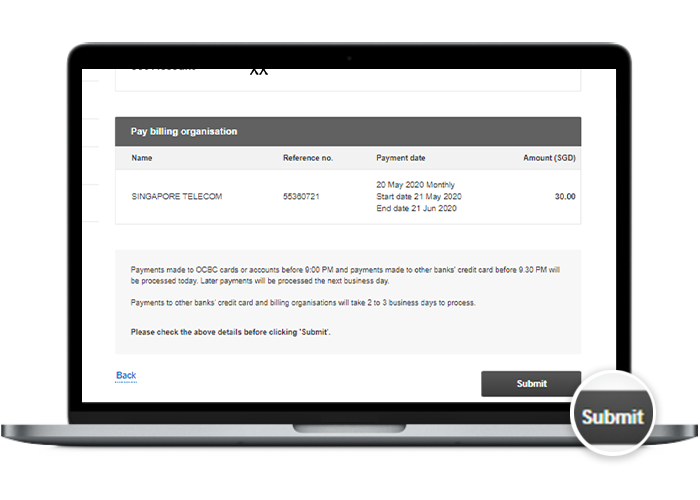
Review
Review your payment details before submitting.
- 6
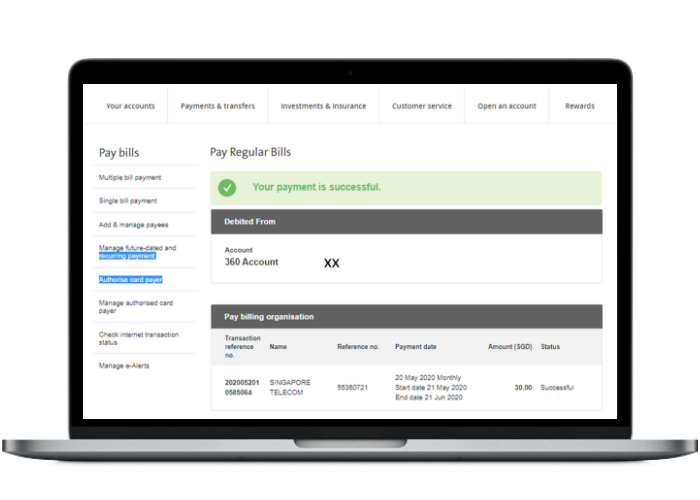
Done
And you're done!
Reference for assisting clients. Bank screens, steps and limits change often — always confirm the current process with OCBC Bank before advising the client.