How to Pay a Bill at UOB
Pay a bill to a billing organisation — including a credit card — in the UOB TMRW app.
 Singapore
Agent guide. Use these steps to walk the client through the process — the screenshots show exactly what they’ll see on screen.
Pay a bill to a billing organisation (including a UOB or other bank's credit card) in the UOB TMRW app. You can pay now or set a future payment date to avoid late fees.
Before you start
- The UOB TMRW app
- The client's login (or Face ID / Touch ID)
- The billing organisation (add it first if it isn't saved — see How to Add a Biller)
💡 Tip: Schedule the payment date ahead of the due date to avoid late fees, or set up GIRO for automatic monthly payment. You can pay to over 100 billing organisations.
Frequently asked questions
Can I schedule the payment?
Yes — set a future payment date, or use GIRO for automatic recurring payment.
How do I pay a credit card?
Add the card as a biller (see How to Add a Biller), then pay it the same way.
- 1
Open Pay & Transfer
Log in to UOB TMRW and tap "Pay & Transfer".
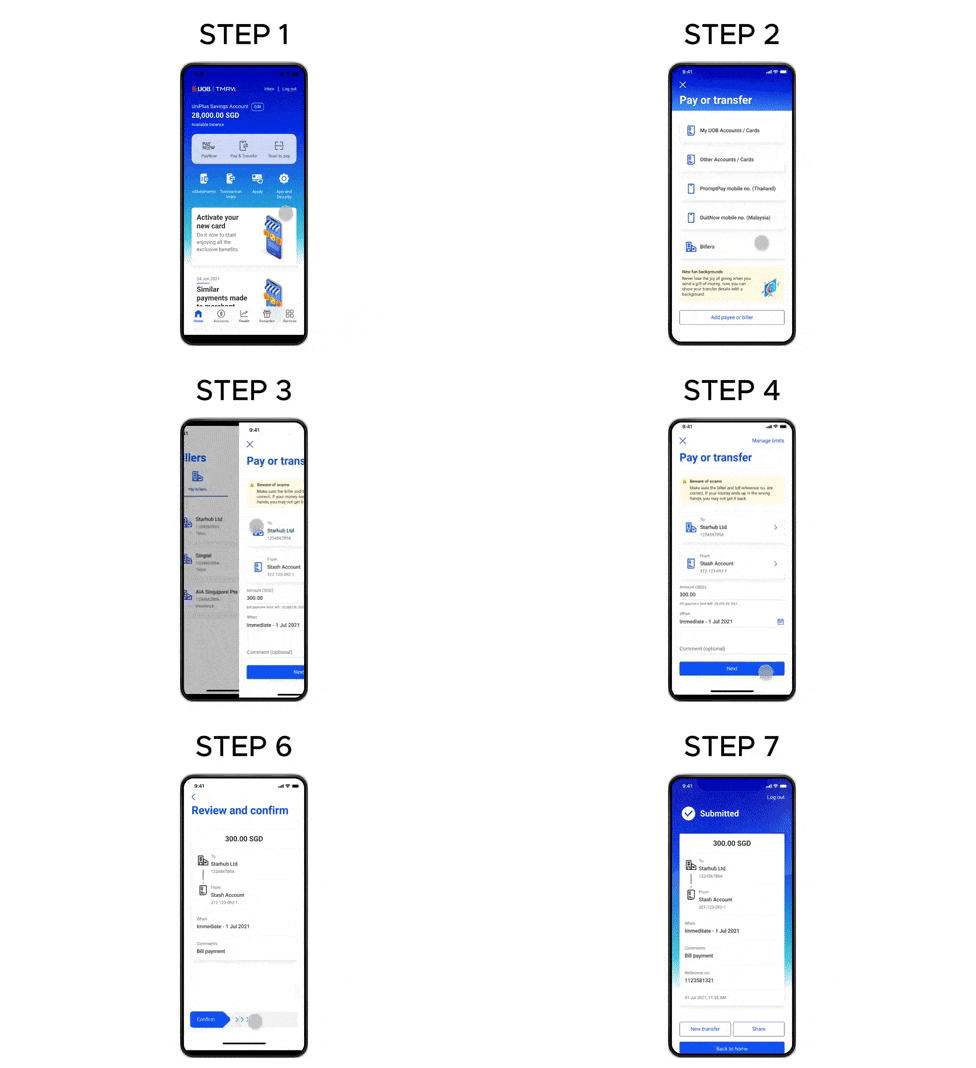
- 2
Select Billers
Select "Billers".
- 3
Choose the billing organisation
Select your billing organisation. To save it for next time, see How to Add a Biller.
- 4
Enter the amount and date
The debiting account is pre-selected from your last transaction. Enter the amount and payment date.
- 5
Confirm the payee
Confirm you're paying a payee you know and trust — tap "Continue".
- 6
Confirm
Review the details and swipe right.
- 7
Done
Your bill payment is successful.
Reference for assisting clients. Bank screens, steps and limits change often — always confirm the current process with UOB before advising the client.