How to Add a Biller at UOB
Save a billing organisation as a biller in the UOB TMRW app so you can pay it quickly next time.
 Singapore
Agent guide. Use these steps to walk the client through the process — the screenshots show exactly what they’ll see on screen.
Add a billing organisation as a saved biller in the UOB TMRW app so the client can pay it quickly in future — including a UOB or another bank's credit card.
Before you start
- The UOB TMRW app
- The client's login (or Face ID / Touch ID)
- The biller's name and the bill reference / account number
💡 Tip: To pay a credit card (UOB or another bank's), add it as a biller here, then use How to Pay a Bill.
Frequently asked questions
What do I need to add a biller?
The billing organisation's name and your bill reference / account number with that biller.
- 1
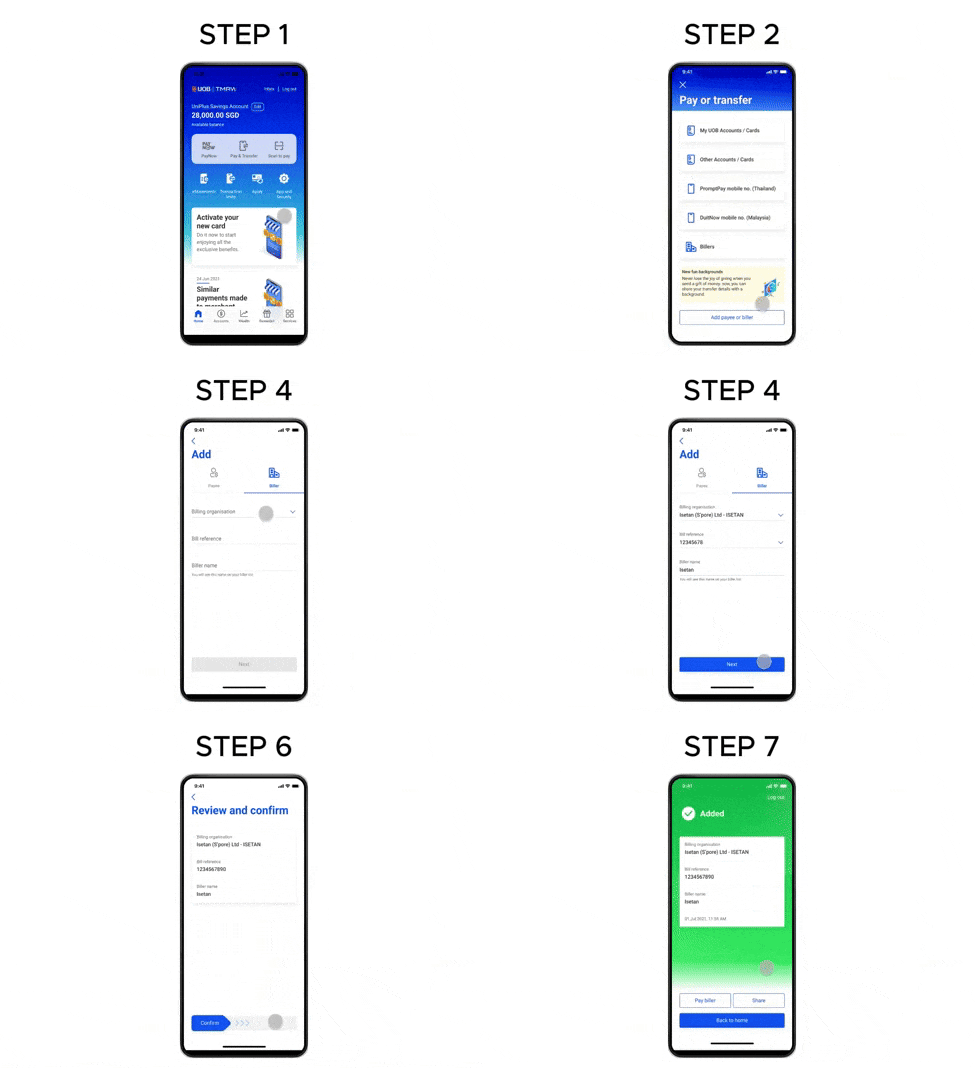
Open Pay & Transfer
Log in to UOB TMRW and tap "Pay & Transfer".
- 2
Add Payee or Biller
Tap "Add Payee or Biller" at the bottom of the screen.
- 3
Choose Biller
Tap "Biller" and type the biller name, or select it from the dropdown list.
- 4
Enter the details
Enter the details and tap "Next".
- 5
Confirm the biller
Confirm the biller and bill reference number are correct, then tap "Proceed".
- 6
Confirm
Review the details and swipe right.
- 7
Done
The biller has been added.
Reference for assisting clients. Bank screens, steps and limits change often — always confirm the current process with UOB before advising the client.