How to Enable Your UOB Card's Magnetic Stripe for Overseas Use
Turn on your UOB card's magnetic stripe for overseas ATM and in-store use in the UOB TMRW app — it's off by default for security.
 Singapore
Agent guide. Use these steps to walk the client through the process — the screenshots show exactly what they’ll see on screen.
For security, the magnetic stripe on UOB cards is disabled by default for overseas use. Chip (EMV), contactless and e-commerce still work overseas — you only need to enable the magnetic stripe if a destination requires a swipe. Do it in the UOB TMRW app and set the period of overseas use.
Before you start
- The UOB TMRW app
- The client's login (or Face ID / Touch ID)
- The card to manage
💡 Tip: Chip, contactless and online purchases keep working overseas even with magstripe off — only enable magstripe if a destination needs a swipe, and set an end date. On Personal Internet Banking it's under Account Services → Manage Cards.
Frequently asked questions
Will my card work abroad without this?
Yes — chip, contactless and online transactions work overseas. Only magnetic-stripe swipe transactions need this enabled.
Why is it off by default?
Magnetic stripe is the easiest method to skim or clone, so UOB disables overseas magstripe by default.
- 1
Open Accounts
Log in to UOB TMRW and tap "Accounts".
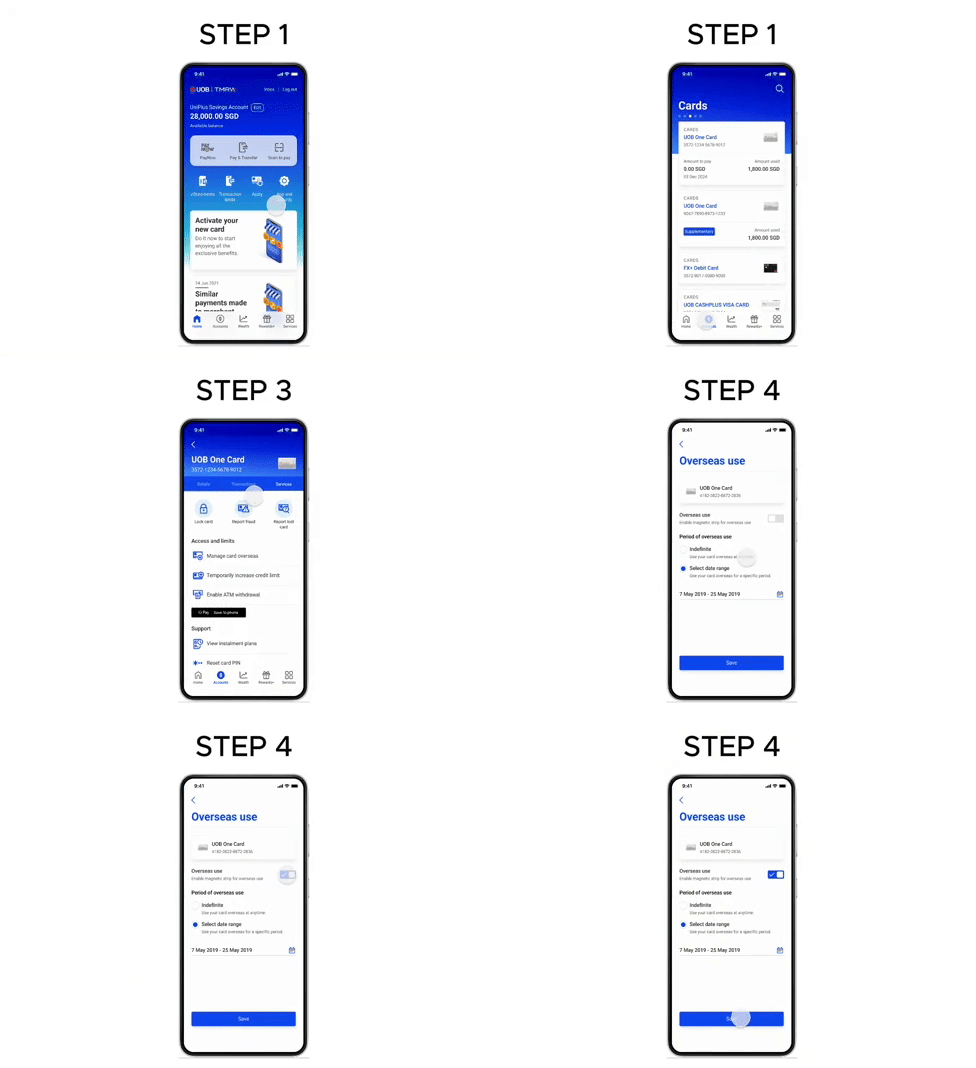
- 2
Select the card
Select the UOB card you want to enable the magnetic stripe for.
- 3
Open Manage overseas use
Under Services, tap "Manage overseas use".
- 4
Enable and set the period
Enable the magnetic stripe, set the period of overseas use, and tap "Save".
Reference for assisting clients. Bank screens, steps and limits change often — always confirm the current process with UOB before advising the client.