How to Approve an Online Card Payment (3D-Secure) at DBS
Authenticate an online / e-commerce card payment with DBS — approve it by push notification in the digibank app, or with an SMS OTP.
 Singapore
Agent guide. Use these steps to walk the client through the process — the screenshots show exactly what they’ll see on screen.
When the client pays online, the transaction is secured with 3D-Secure. They approve it either by a push notification via the digital token in the digibank app, or with a one-time password (OTP) sent by SMS. Make sure push notifications are enabled for the digibank app.
Before you start
- The digibank app installed, with push notifications enabled
- A stable network connection
- The client's mobile number registered with DBS
💡 Tip: Always verify the merchant name and amount before approving. If the client isn't receiving push notifications, check that notifications are enabled for the digibank app and that their mobile number is up to date.
Frequently asked questions
The client didn't get a push notification — what now?
Check that push notifications are enabled for the digibank app and there's network signal. They can authenticate with the SMS OTP instead.
- 1
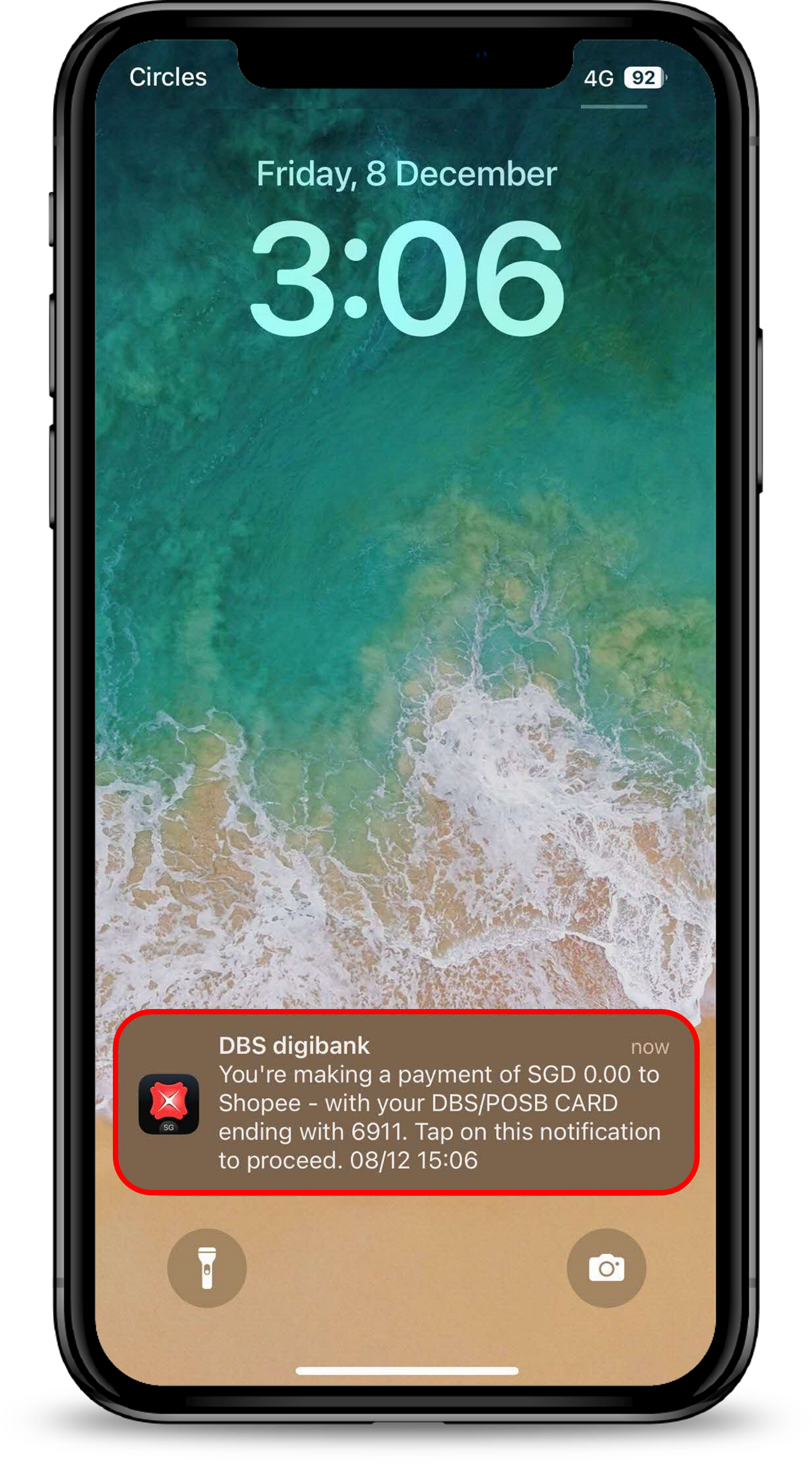
Open the alert
Tap the push notification, or open digibank and tap the Digital Token icon.
- 2
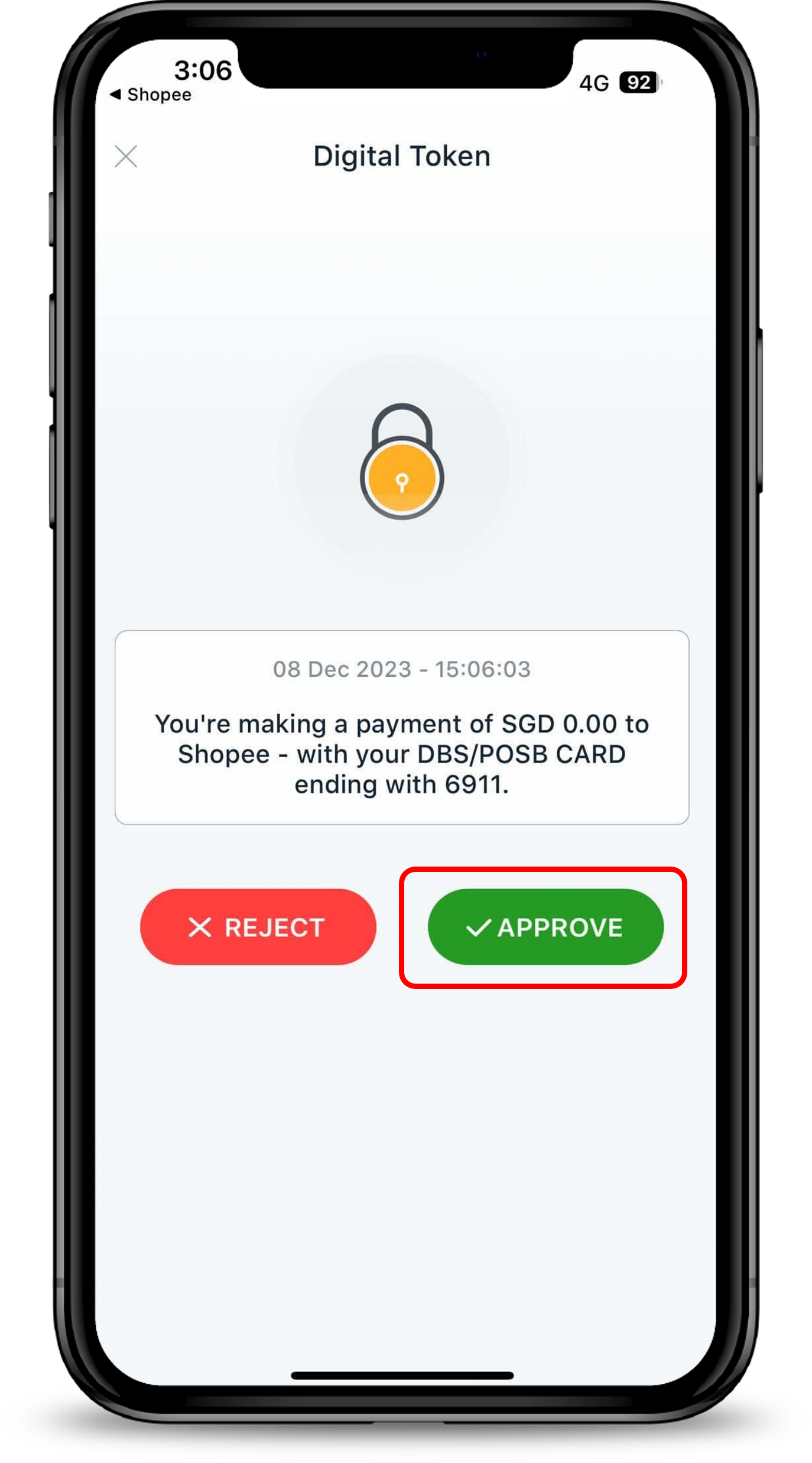
Check and approve
Check the merchant name and amount, then tap Approve.
- 3
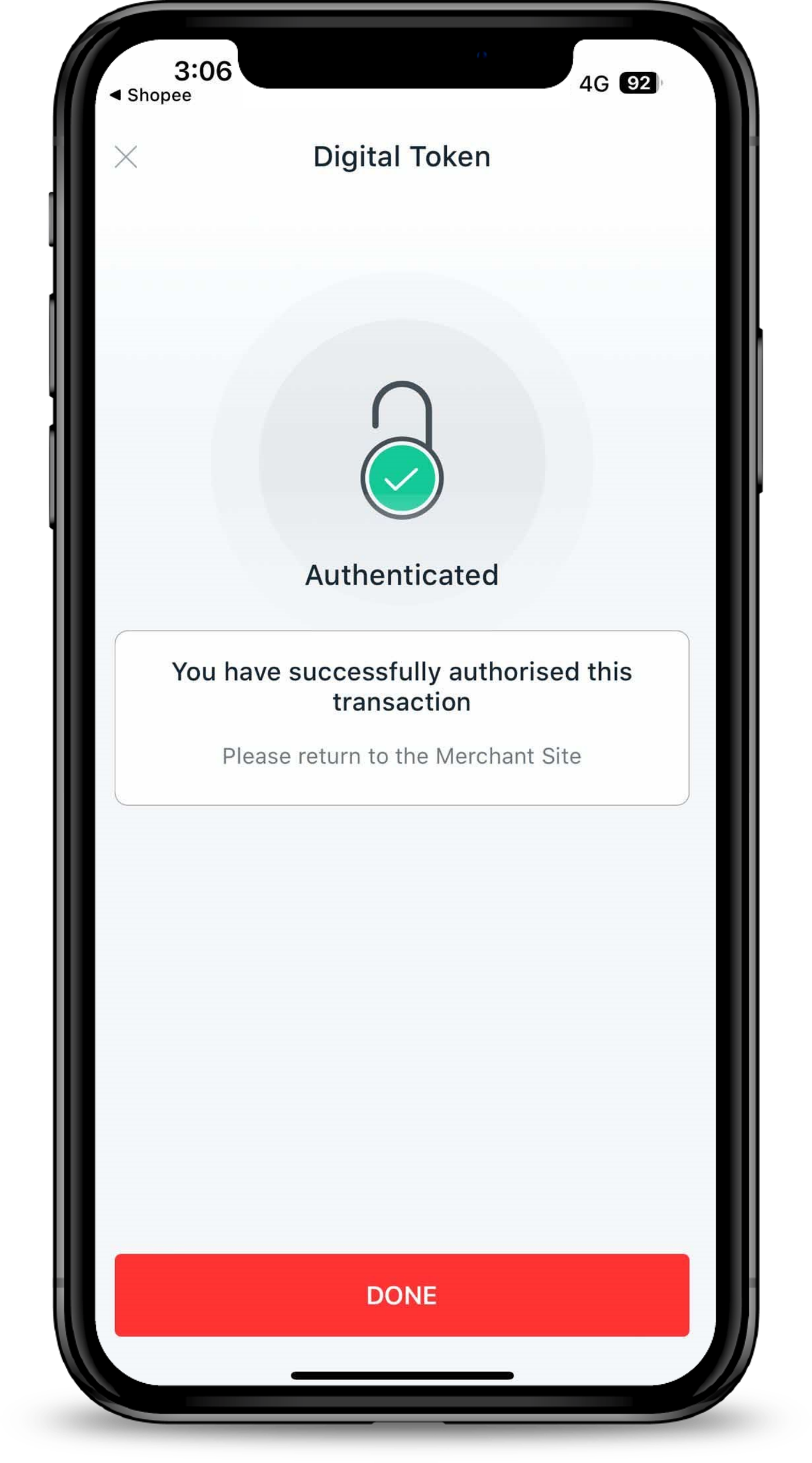
Done
The payment is authenticated.
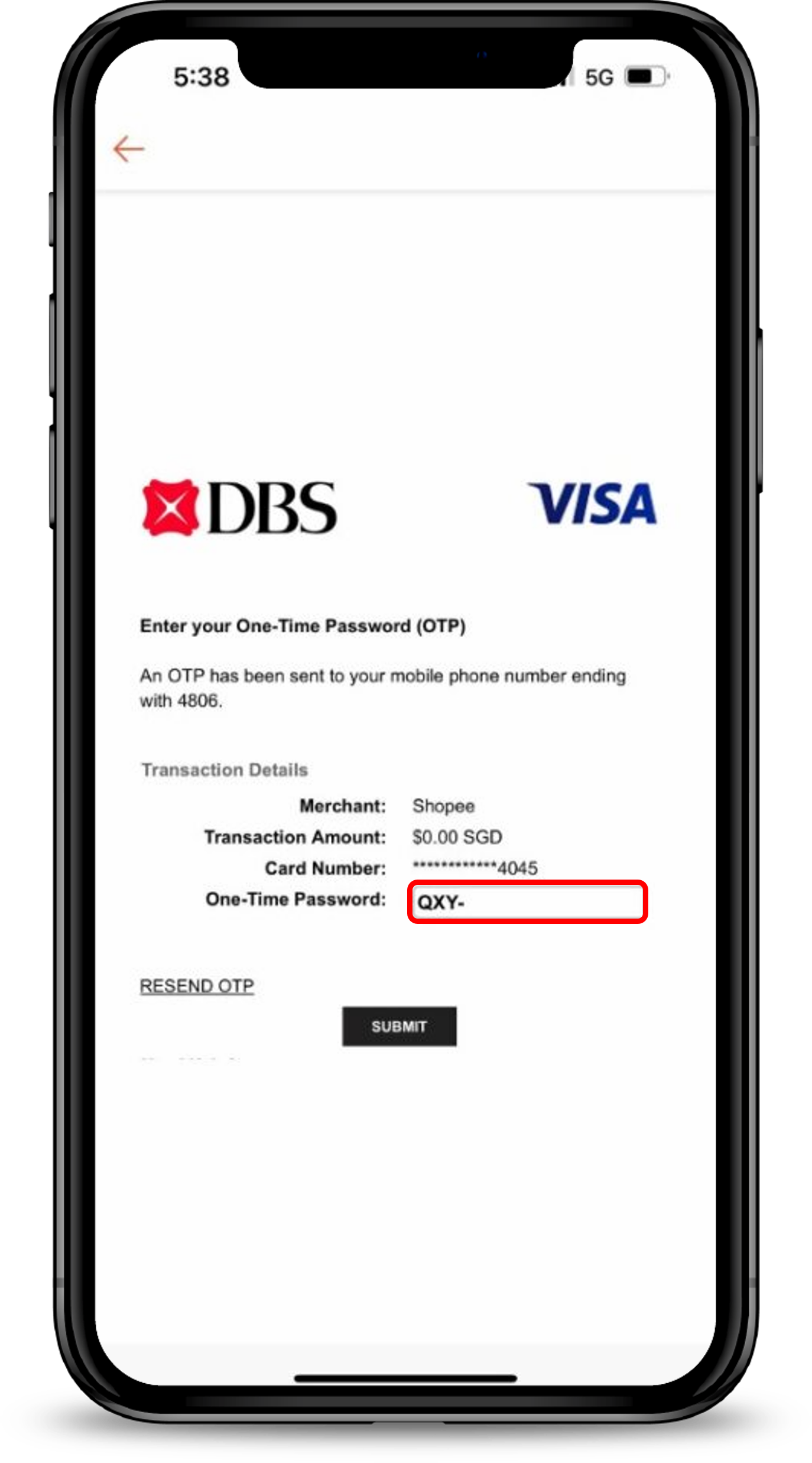
- 1
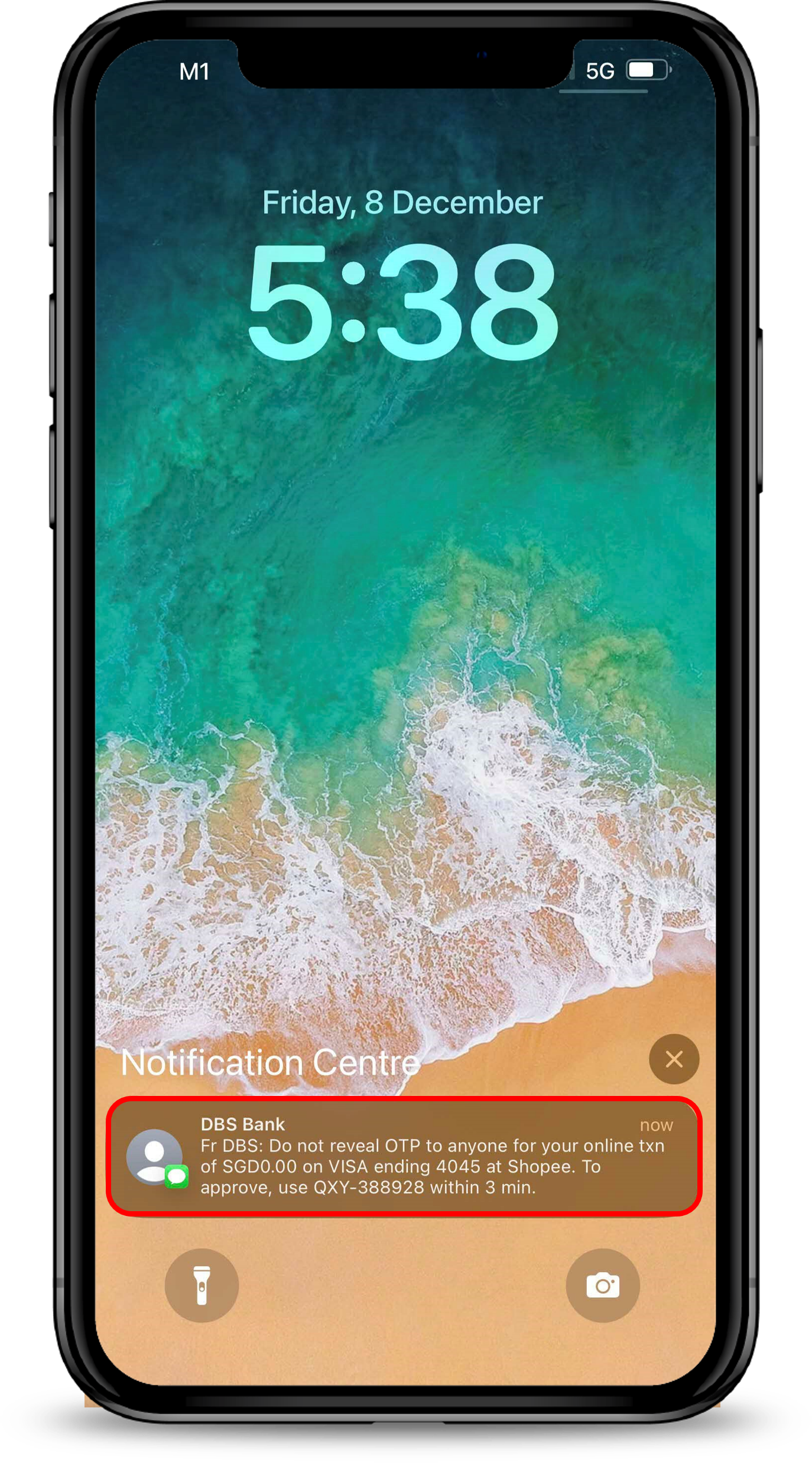
Get the SMS
An OTP is sent by SMS to the registered mobile number.
- 2
Enter and submit
Check the merchant and amount, enter the OTP and tap Submit.
Reference for assisting clients. Bank screens, steps and limits change often — always confirm the current process with DBS Bank before advising the client.