How to Temporarily Lock a DBS Card
Temporarily lock a misplaced DBS credit or debit card with Payment Controls — and unlock it the same way — in the digibank app or digibank Online.
 Singapore
Agent guide. Use these steps to walk the client through the process — the screenshots show exactly what they’ll see on screen.
If the client has misplaced a card, they can temporarily lock it with Payment Controls to stop new transactions, then unlock it the same way once it turns up — no need to cancel the card. Do it in the digibank app or on digibank Online.
Before you start
- The client's DBS credit or debit card
- The digibank app, or access to digibank Online
- Their digibank User ID and PIN (or Touch/Face ID)
💡 Tip: Locking is instant and reversible — unlock the card the same way in Payment Controls. If the card is actually lost or stolen (not just misplaced), report it and order a replacement instead.
Frequently asked questions
How do I unlock it again?
Go back to Payment Controls, select the card and toggle it back on.
Should I lock or report the card?
Lock it if it's just misplaced. If it's lost or stolen, report it and order a replacement.
- 1
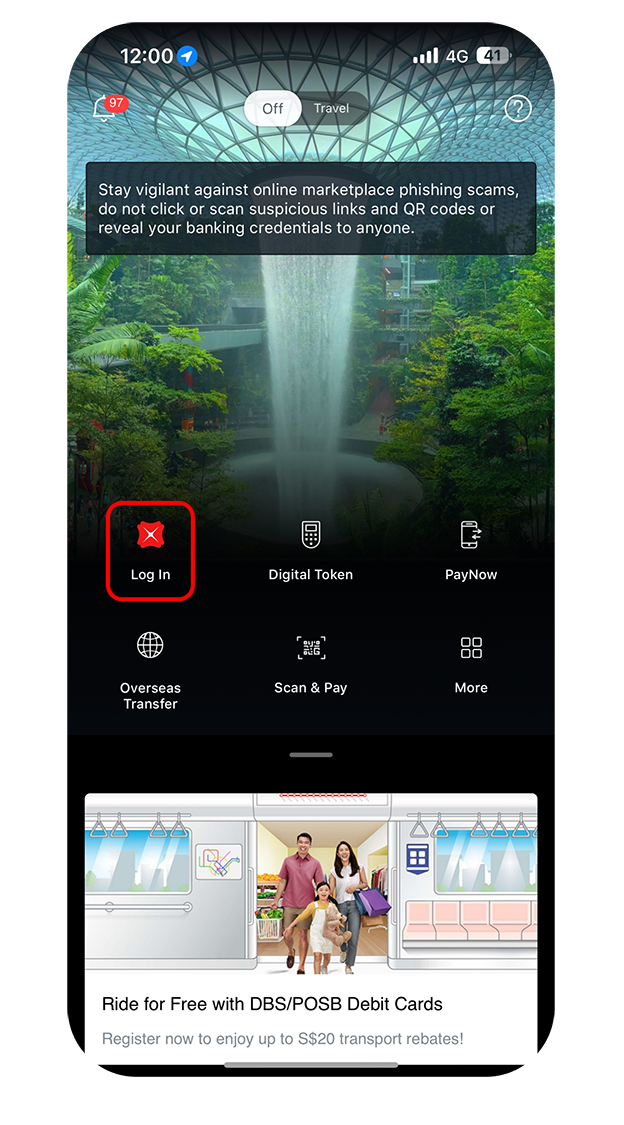
Log in to the app
Log in to digibank mobile with Touch/Face ID or the digibank User ID and PIN.
- 2
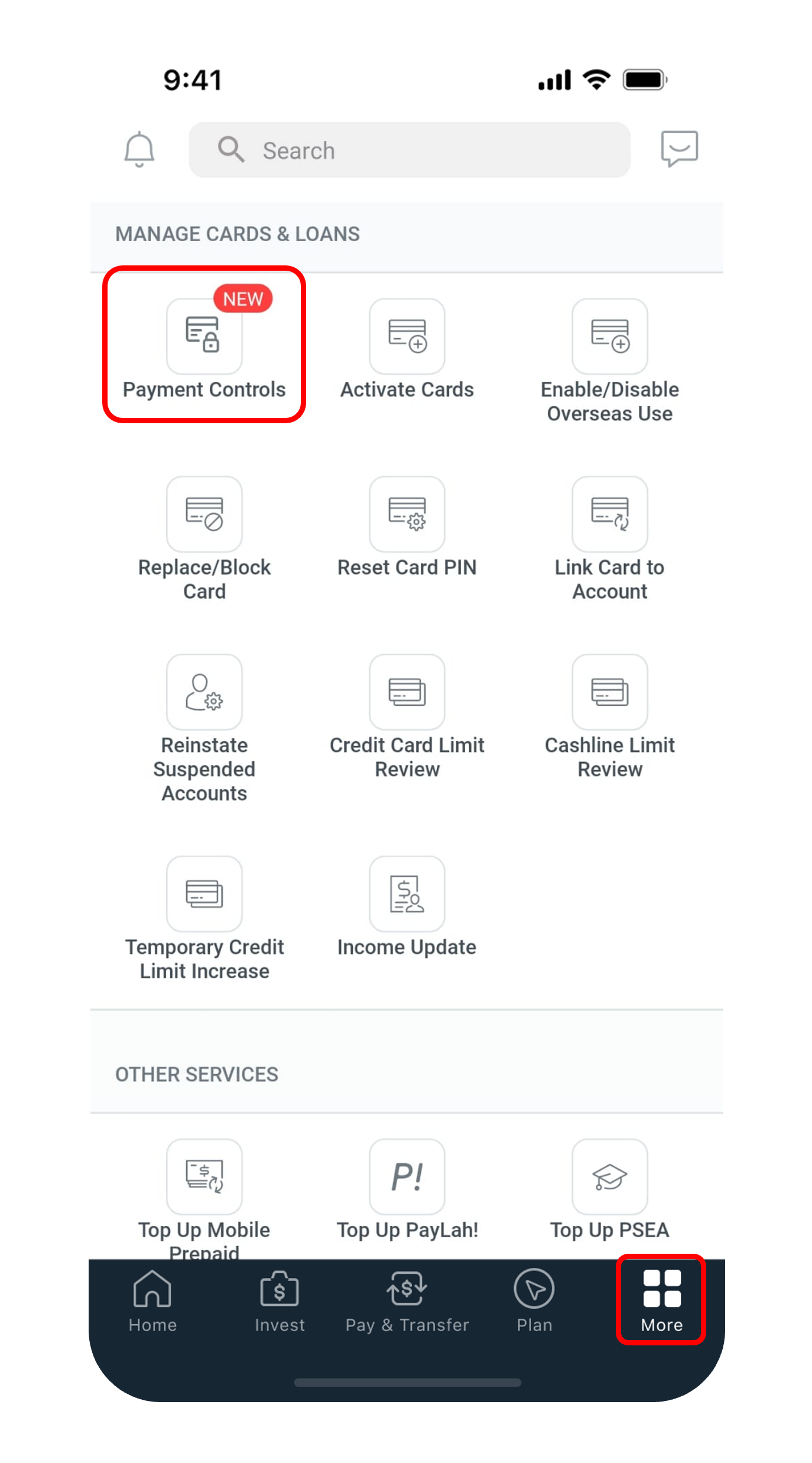
Open Payment Controls
Tap "More", then "Payment Controls" under Manage Cards & Loans.
- 3
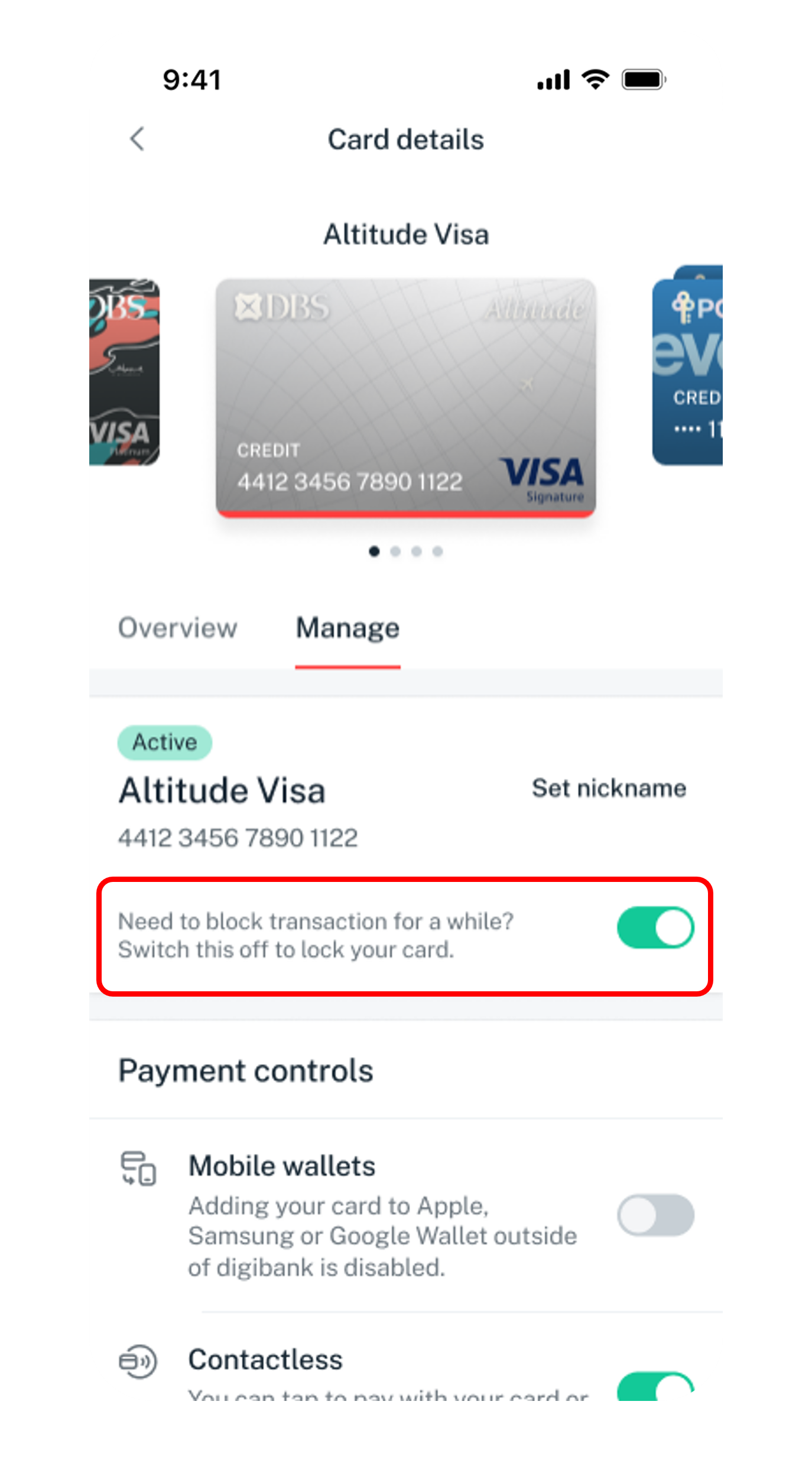
Select the card
Choose the card to lock.
- 4
Toggle off
Switch it off to temporarily lock the card.
- 5
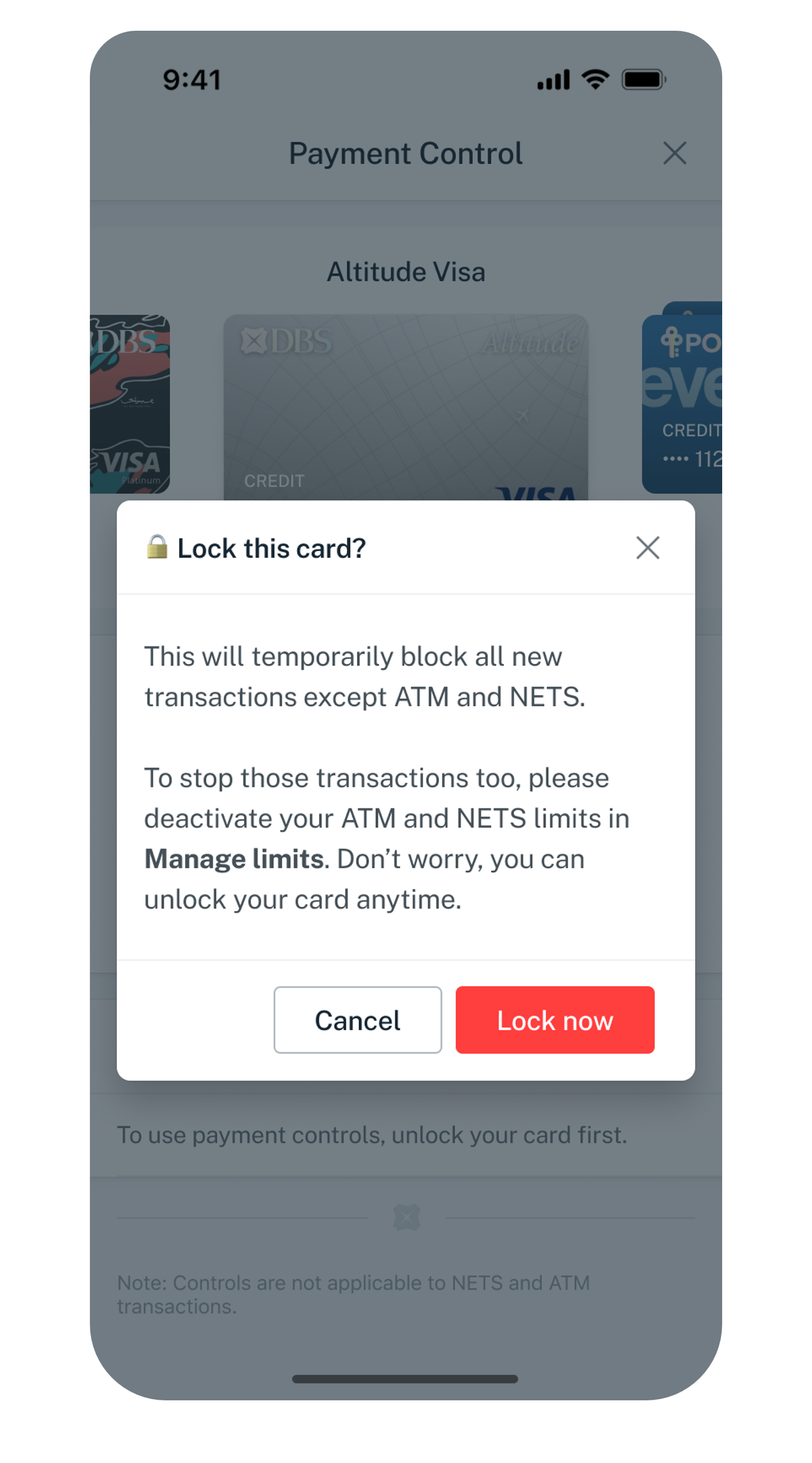
Confirm
Tap Lock Now.
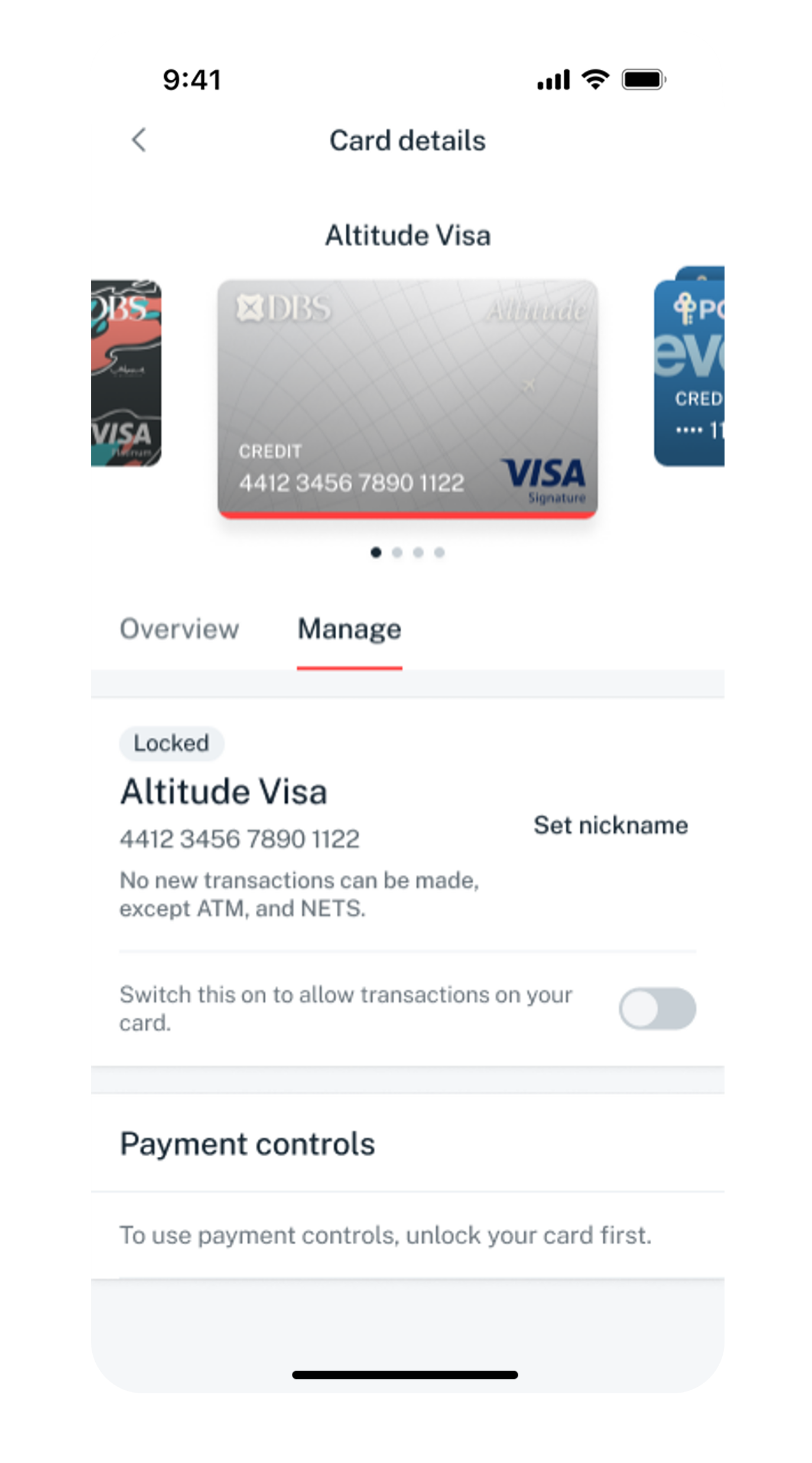
- 1
Log in to digibank Online
Go to dbs.com.sg and log in with the digibank User ID and PIN.

- 2
Complete 2FA
Complete the authentication process.
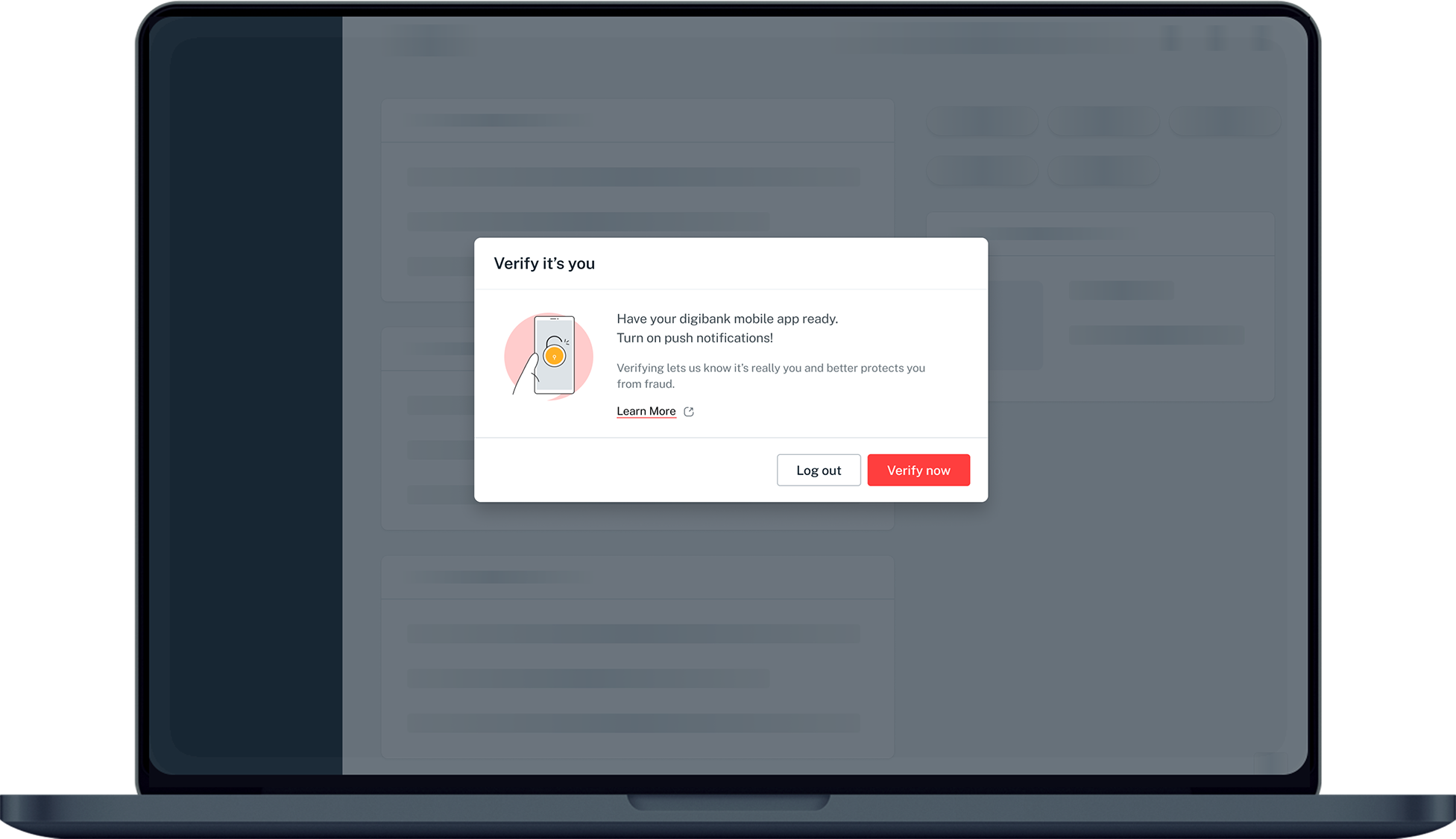
- 3
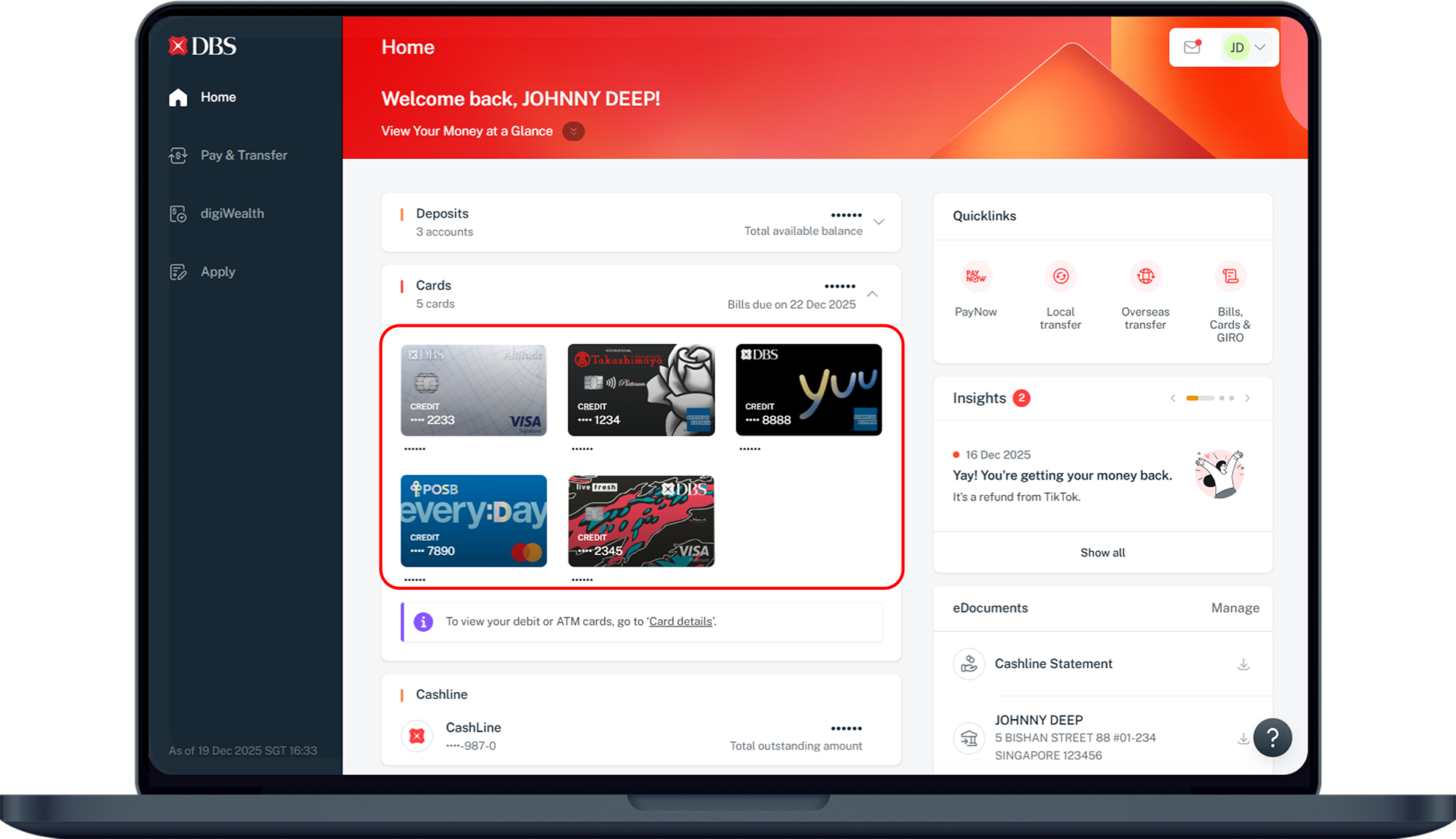
Open the card
Under Home, click Cards and select the card.
- 4
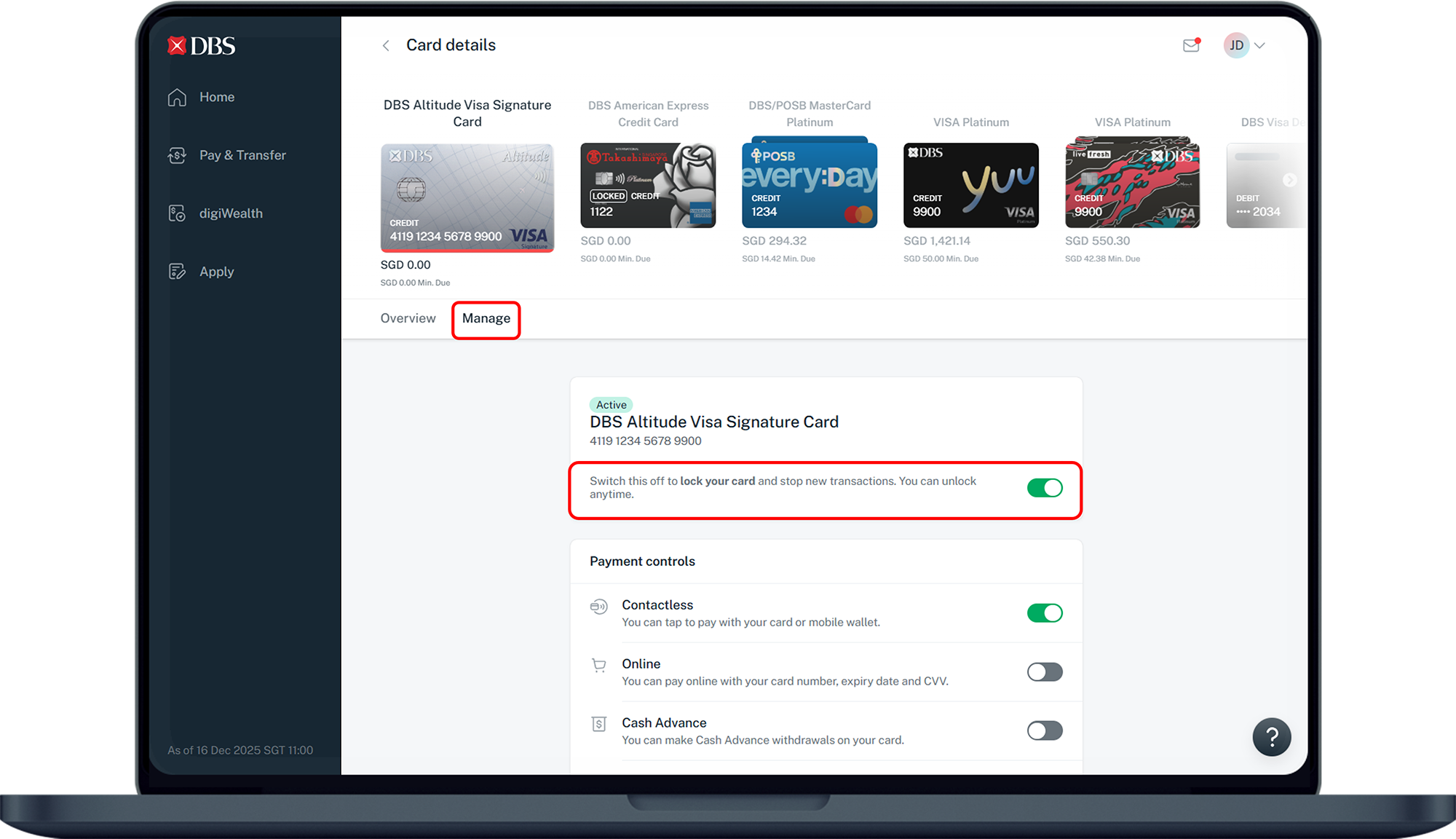
Open Manage
Under Card Details, select Manage.
- 5
Toggle off
Switch it off to temporarily lock the card.
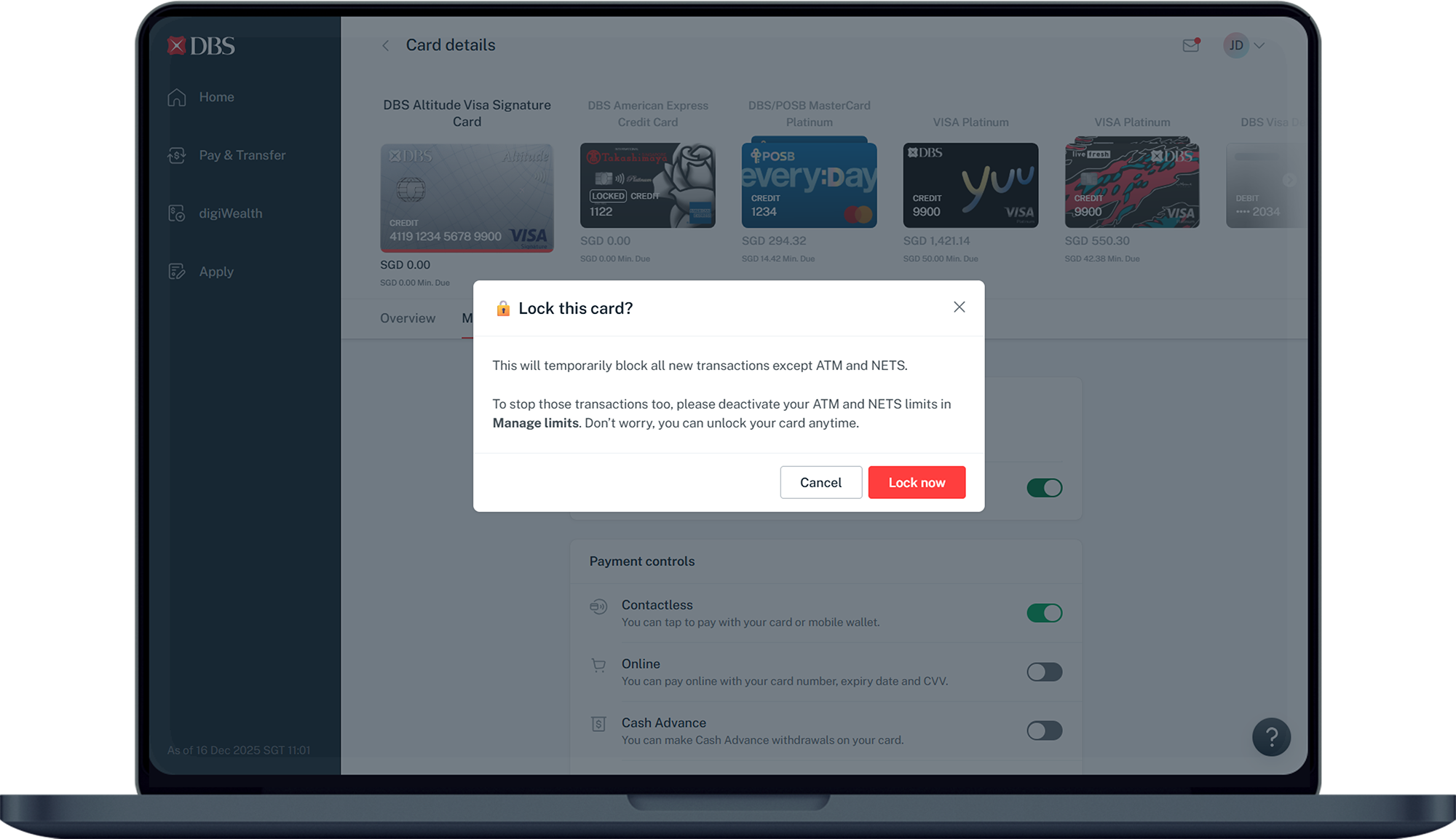
- 6
Confirm
Click Lock Now.
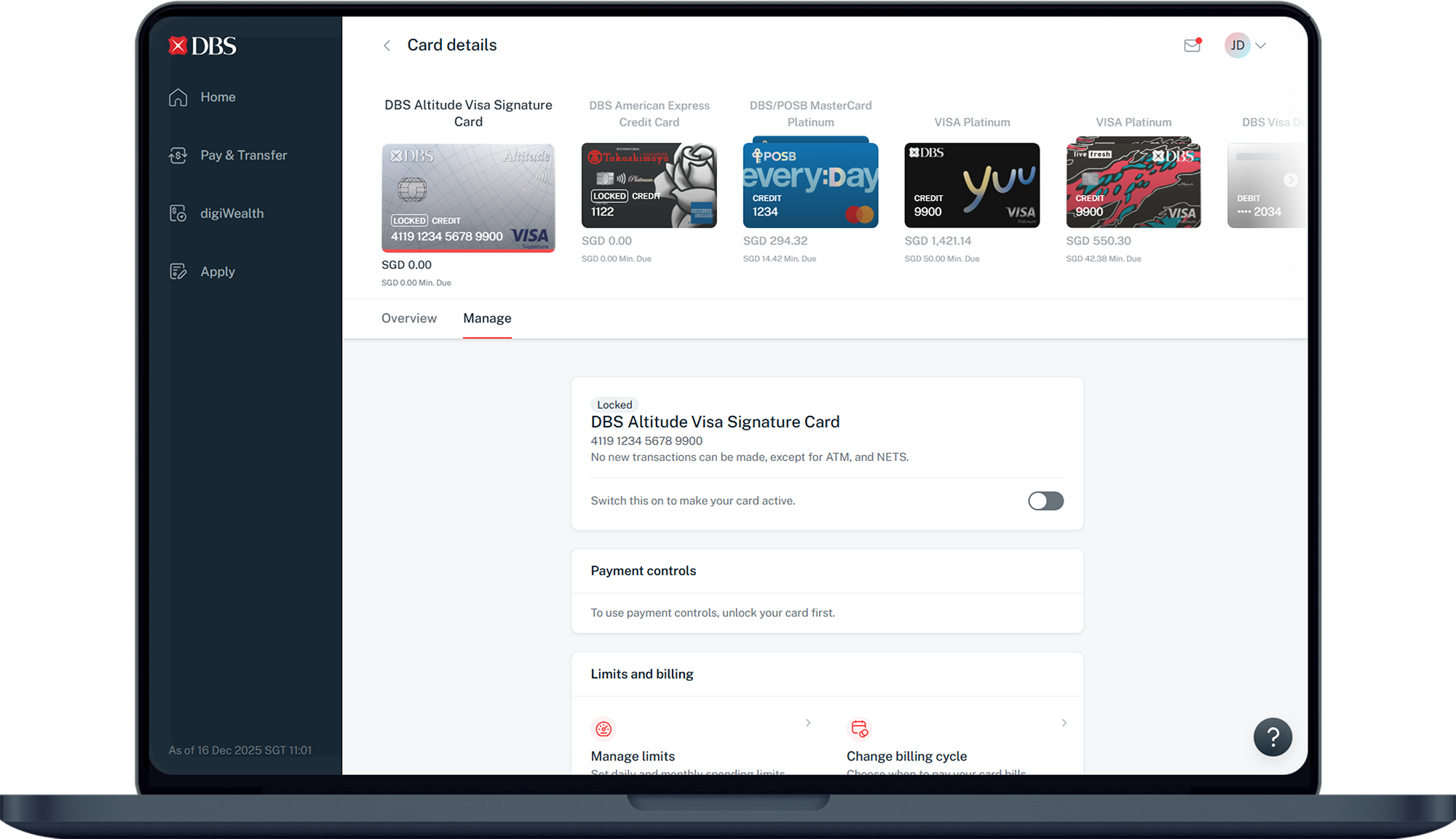
Reference for assisting clients. Bank screens, steps and limits change often — always confirm the current process with DBS Bank before advising the client.