How to Customise DBS Card Functions with Payment Controls
Enable or disable a DBS card's functions — contactless, online/e-commerce, overseas use and cash advance — using Payment Controls.
 Singapore
Agent guide. Use these steps to walk the client through the process — the screenshots show exactly what they’ll see on screen.
Payment Controls let the client switch individual card functions on or off — contactless, online/e-commerce, overseas use and cash advance. Disabling "Online" blocks all e-commerce transactions on the card. Do it in the digibank app or on digibank Online.
Before you start
- The client's active DBS card (credit, debit or ATM)
- The digibank app, or access to digibank Online
- Their digibank User ID and PIN (or Touch/Face ID)
💡 Tip: Disabling "Online" blocks all e-commerce transactions; disabling "Contactless" stops tap-to-pay (card and mobile wallet); disabling "Overseas" blocks in-store international use. Controls don't apply to NETS or ATM transactions.
Frequently asked questions
How do I stop online / e-commerce spending on a card?
In Payment Controls, disable the "Online" function for that card. Re-enable it the same way when needed.
Do settings carry over to a replacement card?
Yes — a replacement card keeps the customised Payment Control settings.
- 1
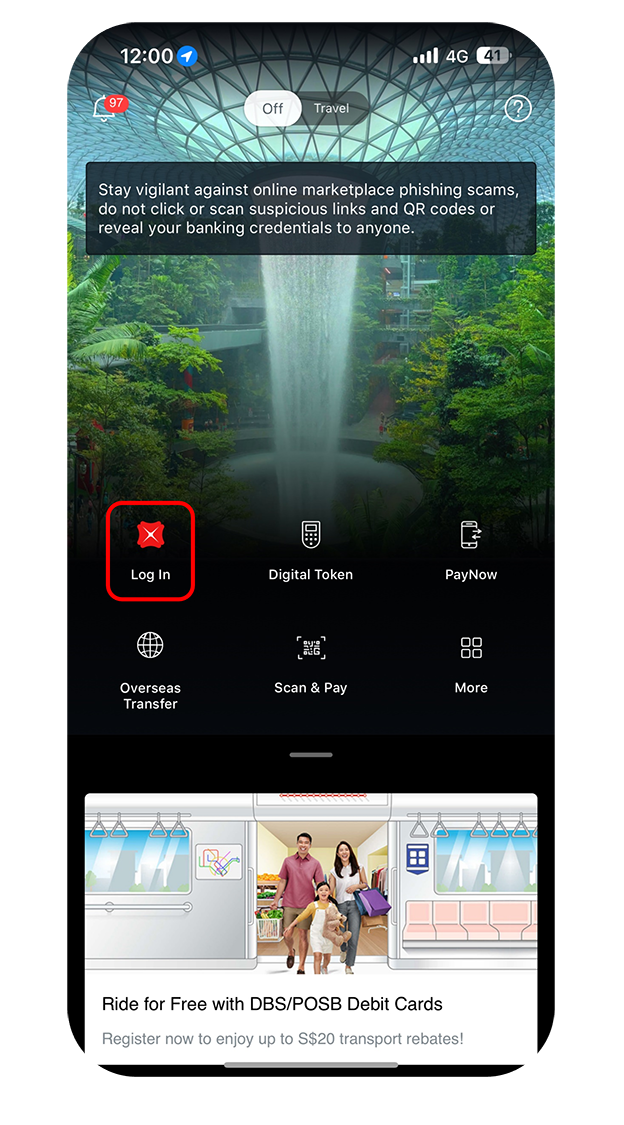
Log in to the app
Log in to digibank mobile with Touch/Face ID or the digibank User ID and PIN.
- 2
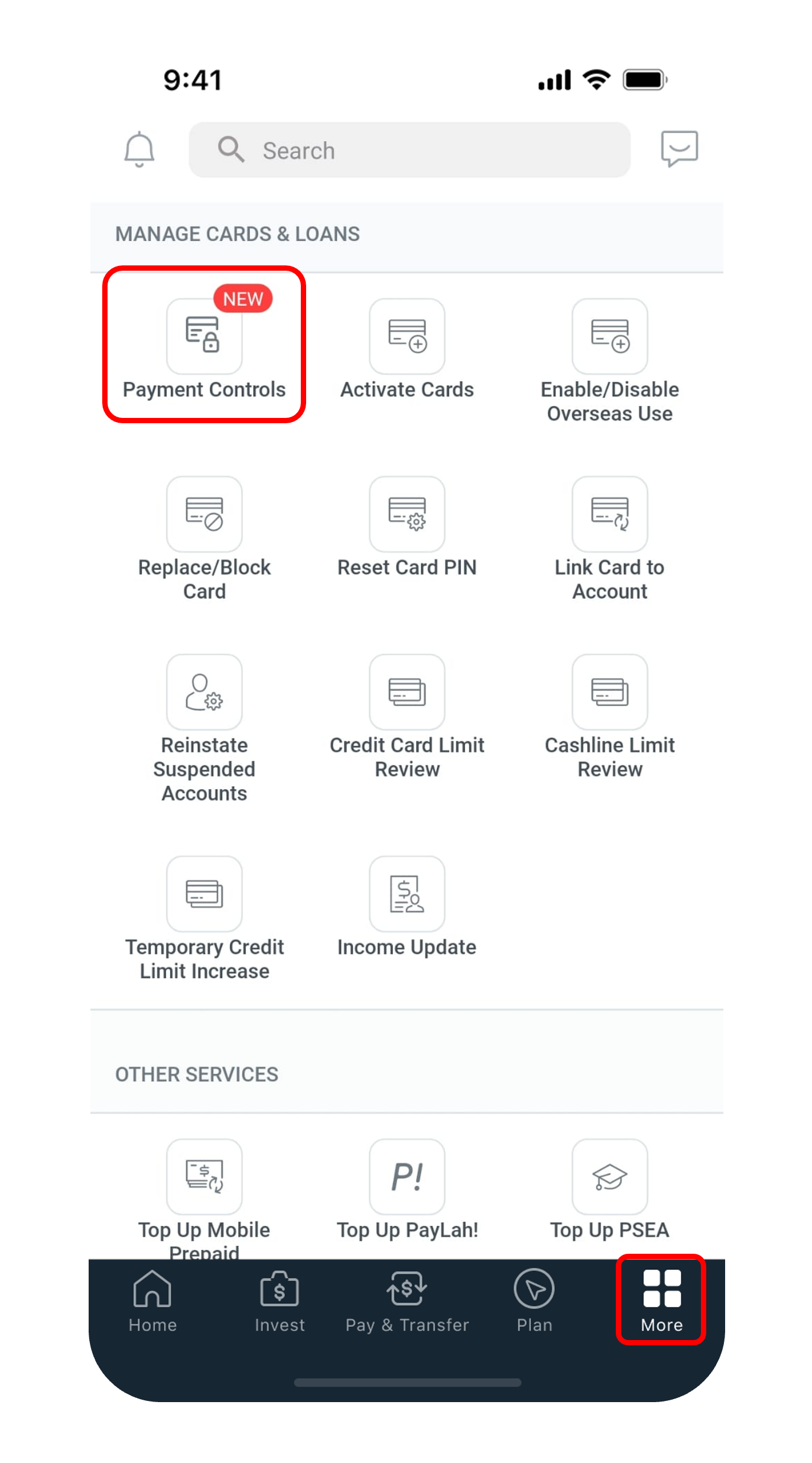
Open Payment Controls
Tap "More", then "Payment Controls" under Manage Cards & Loans.
- 3
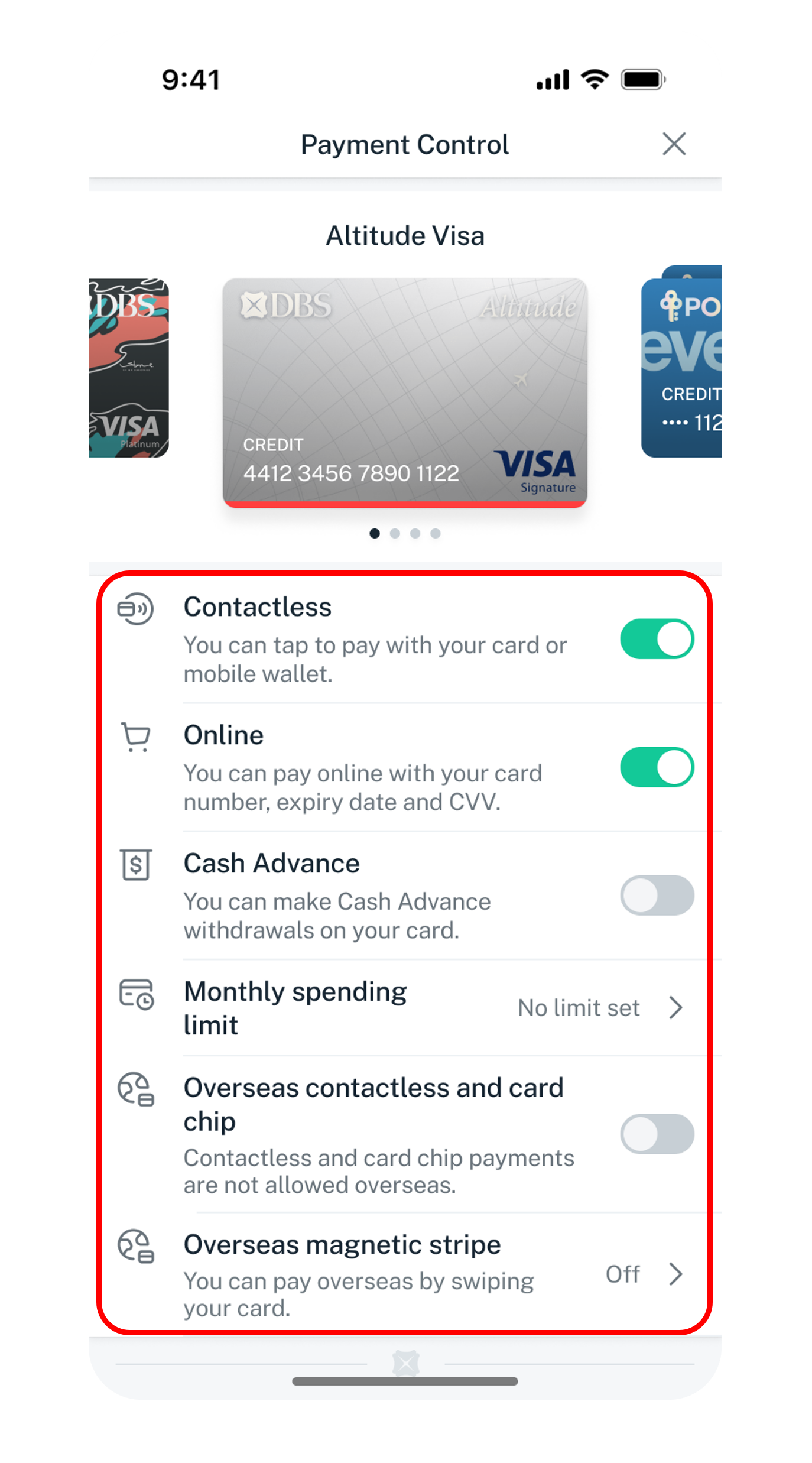
Select the card and toggle functions
Choose the card and toggle each function (contactless, online, overseas, cash advance) on or off.
- 4
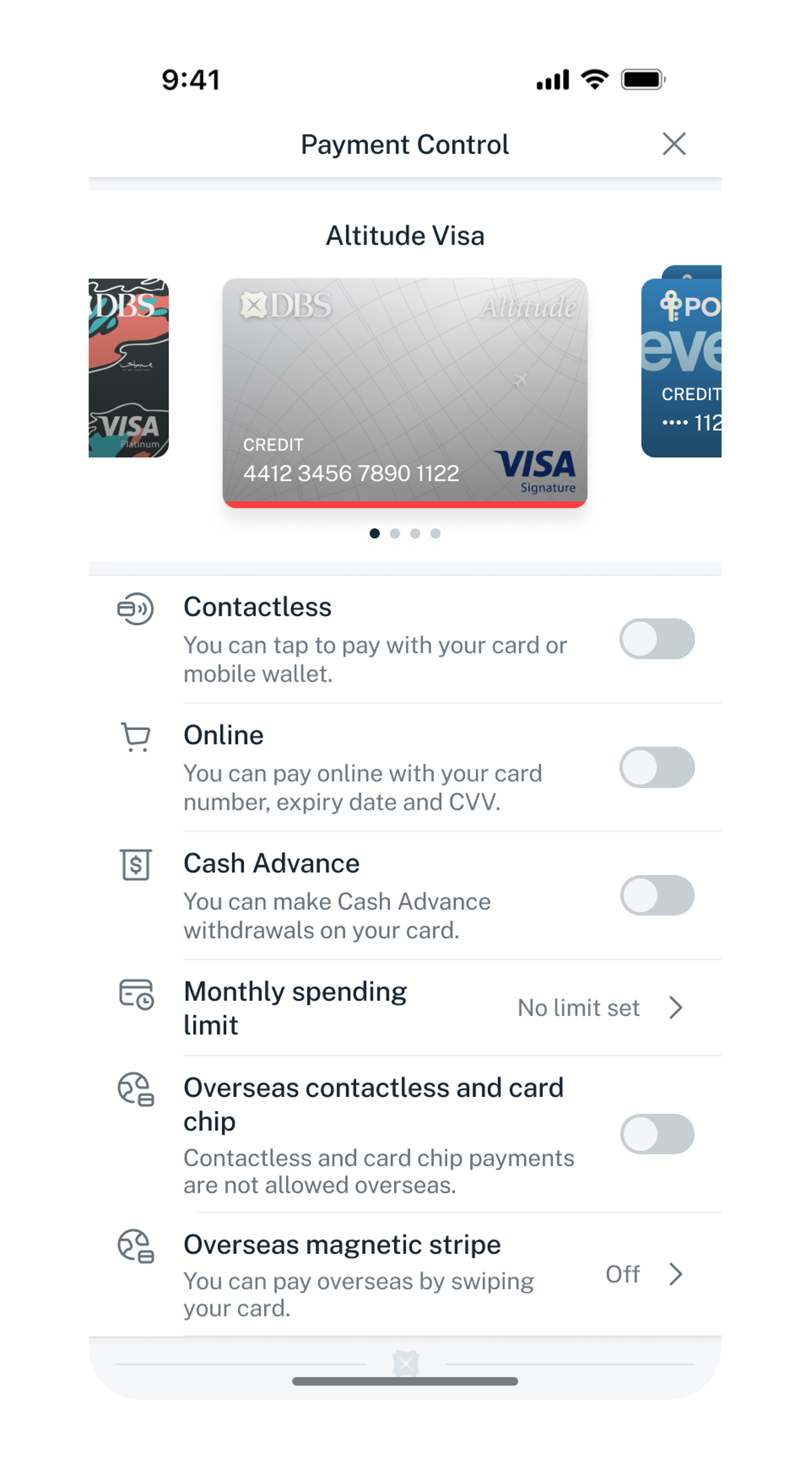
Done
The selected control has been updated.
- 1
Log in to digibank Online
Go to dbs.com.sg and log in with the digibank User ID and PIN.

- 2
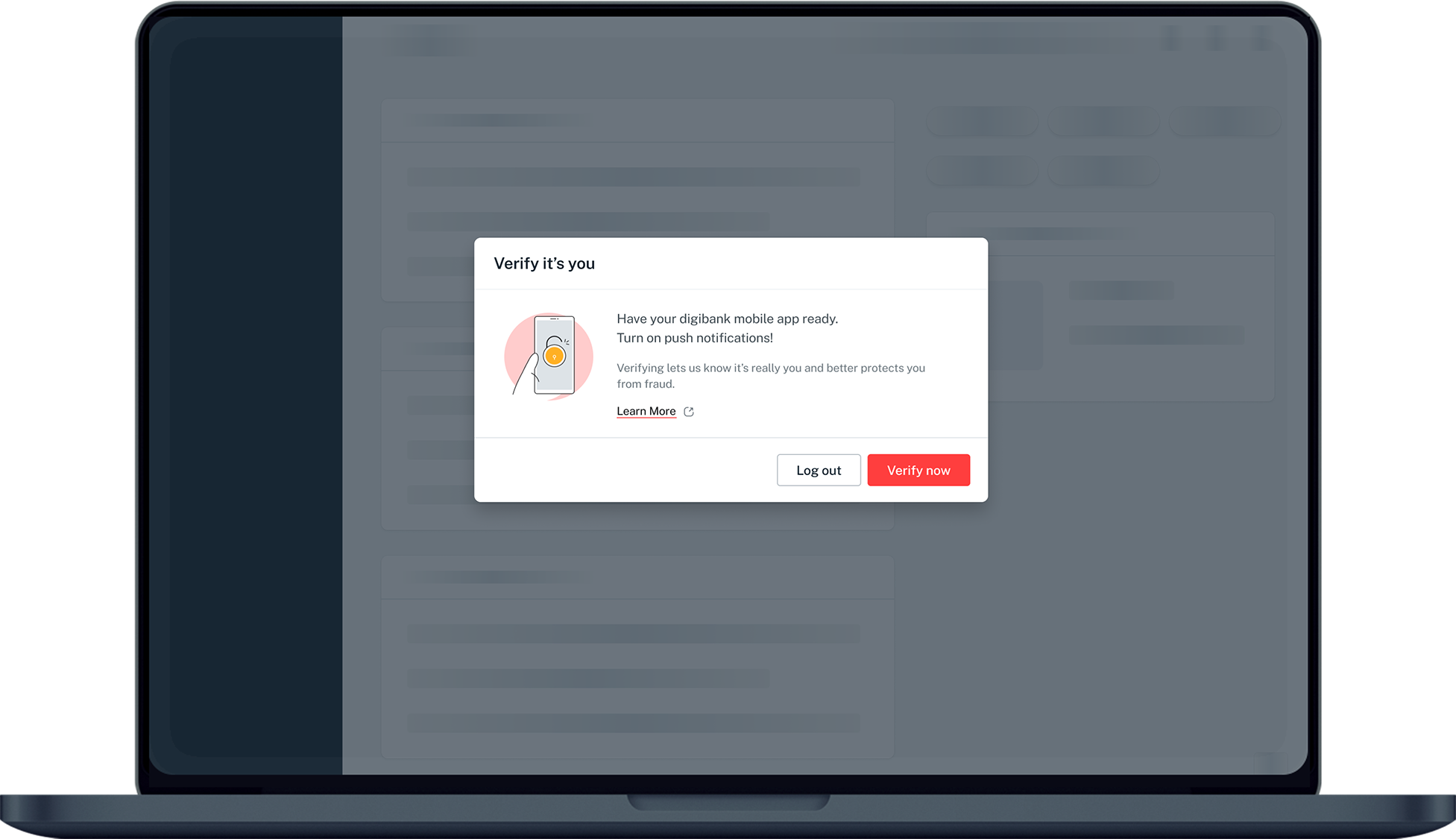
Complete 2FA
Complete the authentication process.
- 3
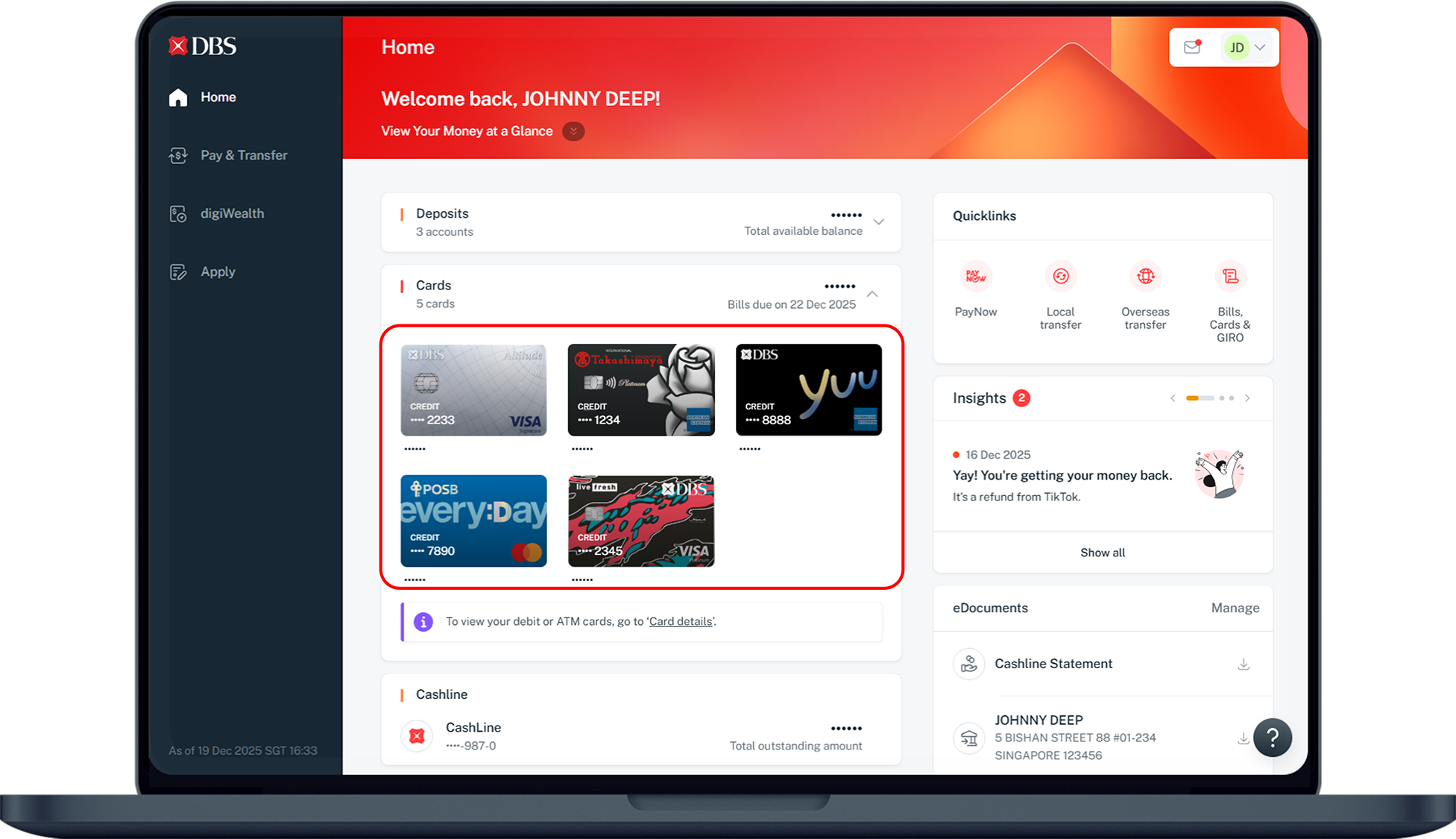
Open the card
Under Home, click Cards and select the card.
- 4
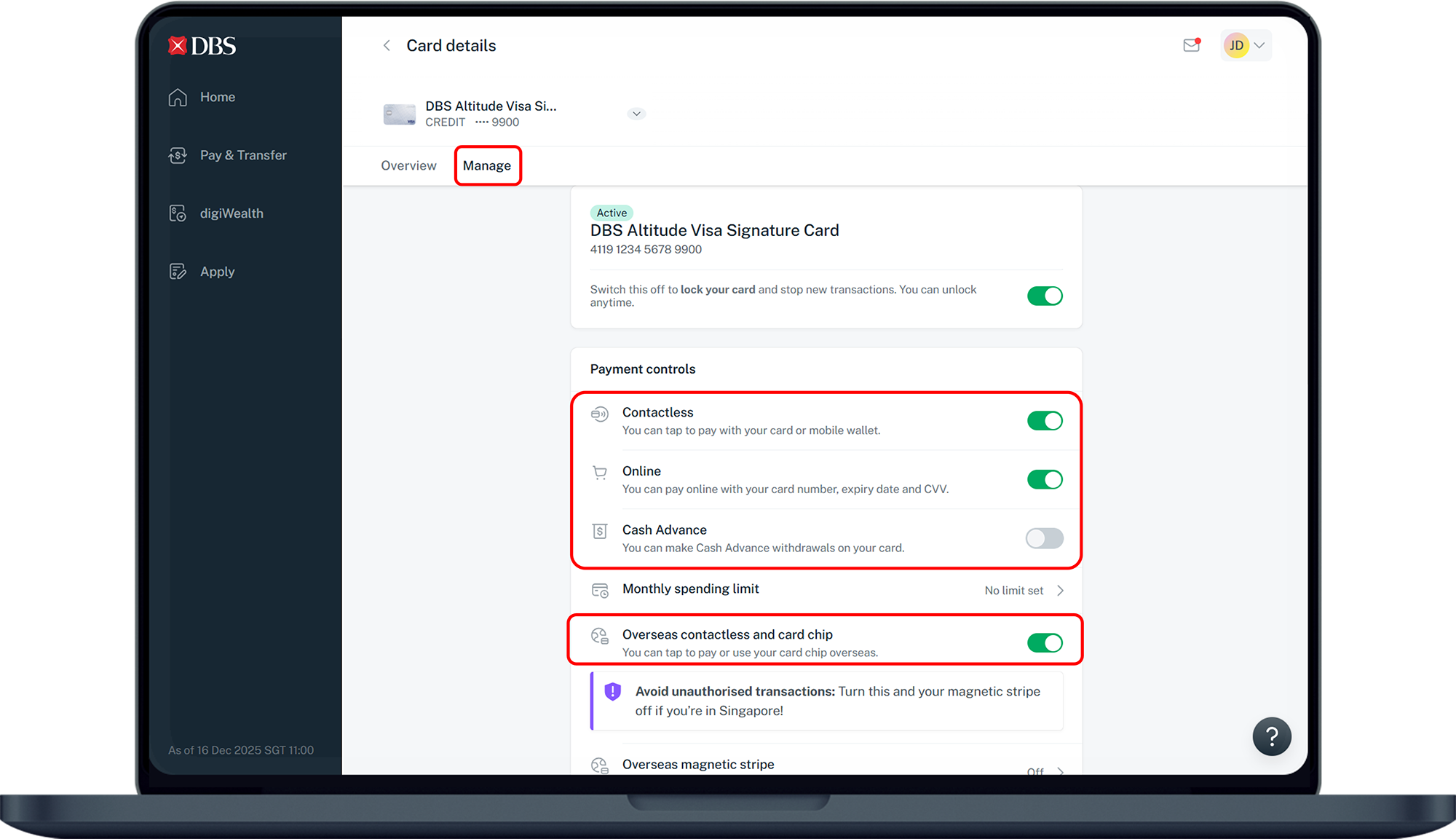
Manage the controls
Under Card details, select Manage and toggle the functions.
- 5
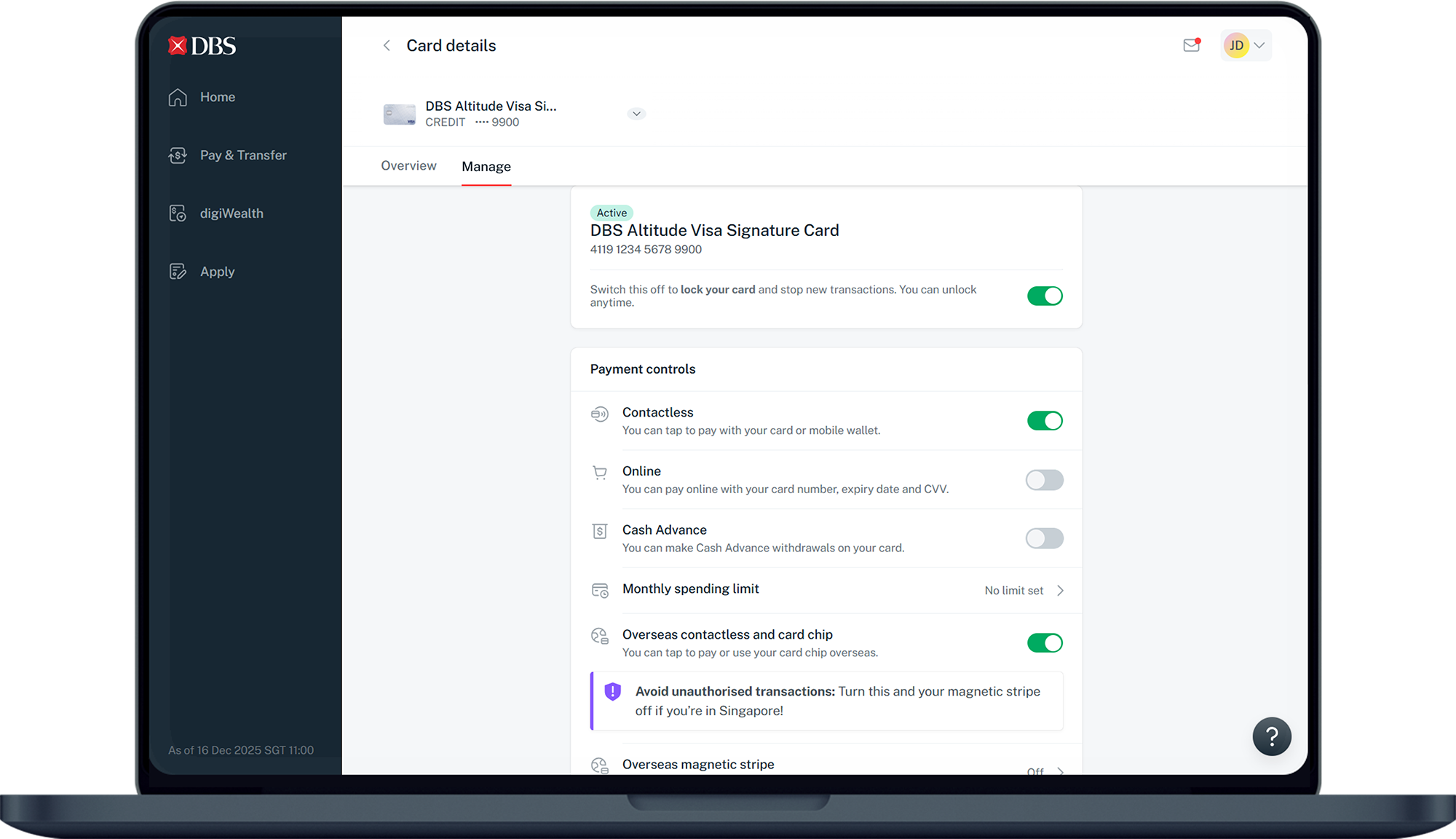
Done
The card function settings have been applied.
Reference for assisting clients. Bank screens, steps and limits change often — always confirm the current process with DBS Bank before advising the client.