How to Set Up UOB Card & Transaction Alerts
Choose your notification mode and threshold for card and transaction alerts in the UOB TMRW app.
 Singapore
Agent guide. Use these steps to walk the client through the process — the screenshots show exactly what they’ll see on screen.
Set up notifications for card and account activity in the UOB TMRW app — choose which transactions to be alerted on, the notification mode, and the threshold amount.
Before you start
- The UOB TMRW app
- The client's login (or Face ID / Touch ID)
- The UOB TMRW digital token
💡 Tip: A low threshold catches small unauthorised "test" charges early.
Frequently asked questions
Which alerts can I set?
Alerts by transaction category, each with your own notification mode and threshold amount.
- 1
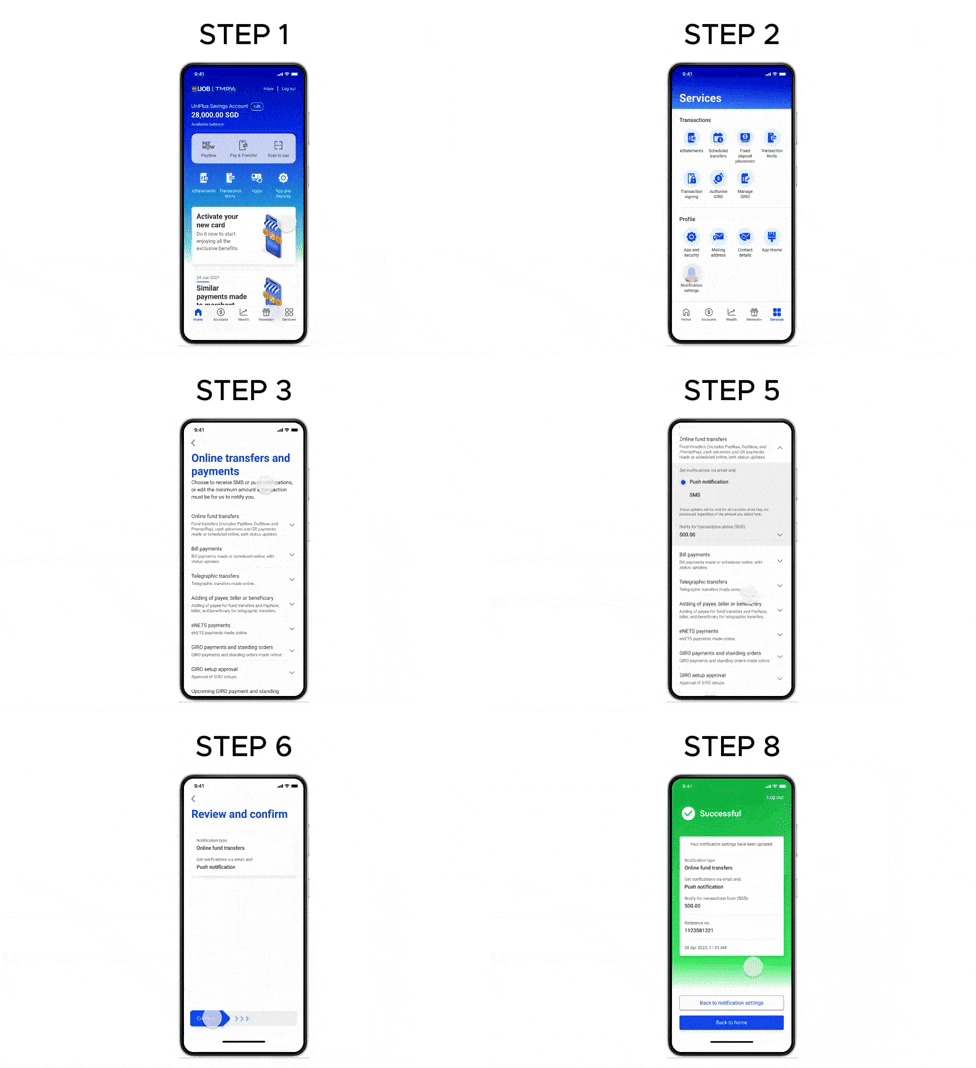
Open Services
Log in to UOB TMRW and tap "Services".
- 2
Open Notification settings
Select "Notification settings" under "Profile".
- 3
Choose a category
Select the transaction category you want to manage alerts for.
- 4
Select the transaction type
The category expands — select the relevant transaction type.
- 5
Set mode and threshold
Select your preferred notification mode and threshold amount, then tap "Save". If you make no changes, the bank's default mode and threshold apply.
- 6
Confirm
Review and confirm by swiping right.
- 7
Enter your digital token code
Enter your digital token code as an added layer of security.
- 8
Done
Your notification settings have been updated.
Reference for assisting clients. Bank screens, steps and limits change often — always confirm the current process with UOB before advising the client.