How to Make a Local Transfer to Another Bank (OCBC)
Send SGD to another local bank account in Singapore by account number, via FAST — almost instantly — in the OCBC app or OCBC Internet Banking. This is a local (domestic) transfer, not an overseas one.
 Singapore
Agent guide. Use these steps to walk the client through the process — the screenshots show exactly what they’ll see on screen.
This is a LOCAL transfer — sending SGD to another local bank account within Singapore by account number, using FAST. It is not an international or overseas transfer. Transfers to FAST-participating banks arrive almost instantly, up to S$200,000 a day. The steps below walk the client through it in the OCBC app or on OCBC Internet Banking.
Before you start
- The OCBC app, or access to OCBC Internet Banking
- The client's access code and PIN (or fingerprint ID / Singpass on the app)
- The recipient's bank and account number
💡 Tip: FAST transfers to participating banks are almost instant and free, up to S$200,000 a day. The recipient name entered is only a reference — the transfer is processed on the account number, so double-check it. To send to a mobile number or NRIC/FIN instead, use PayNow.
Frequently asked questions
Is this an overseas transfer?
No — this is a LOCAL transfer within Singapore. To send money abroad, use the overseas / telegraphic transfer flow instead.
Can I send to a mobile number instead?
Yes — use PayNow to send to a mobile number or NRIC/FIN instead of an account number.
- 1
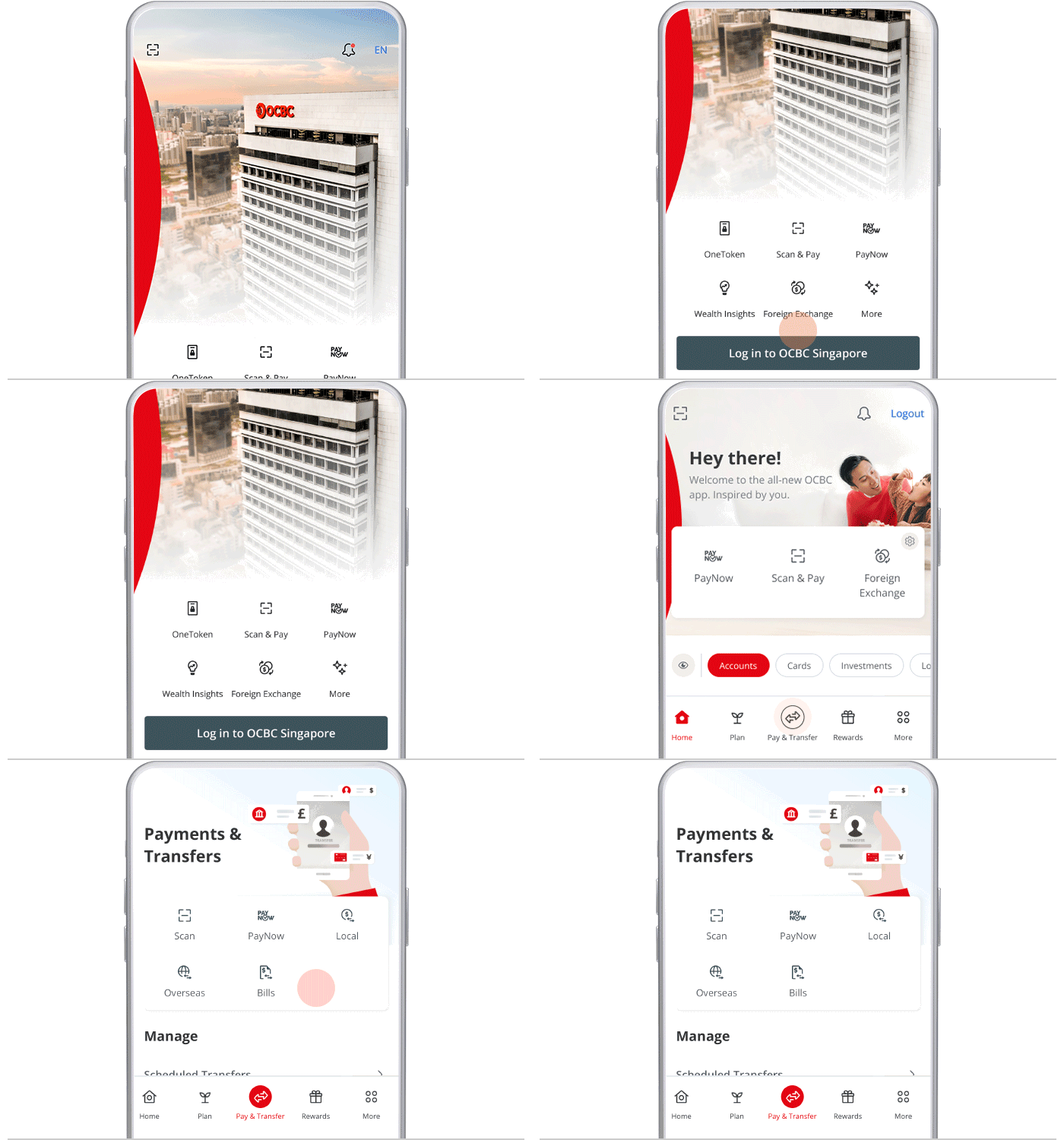
Log in and open a Local transfer
Log in to the OCBC app, tap "Pay & Transfer", then select "Local".
- 2
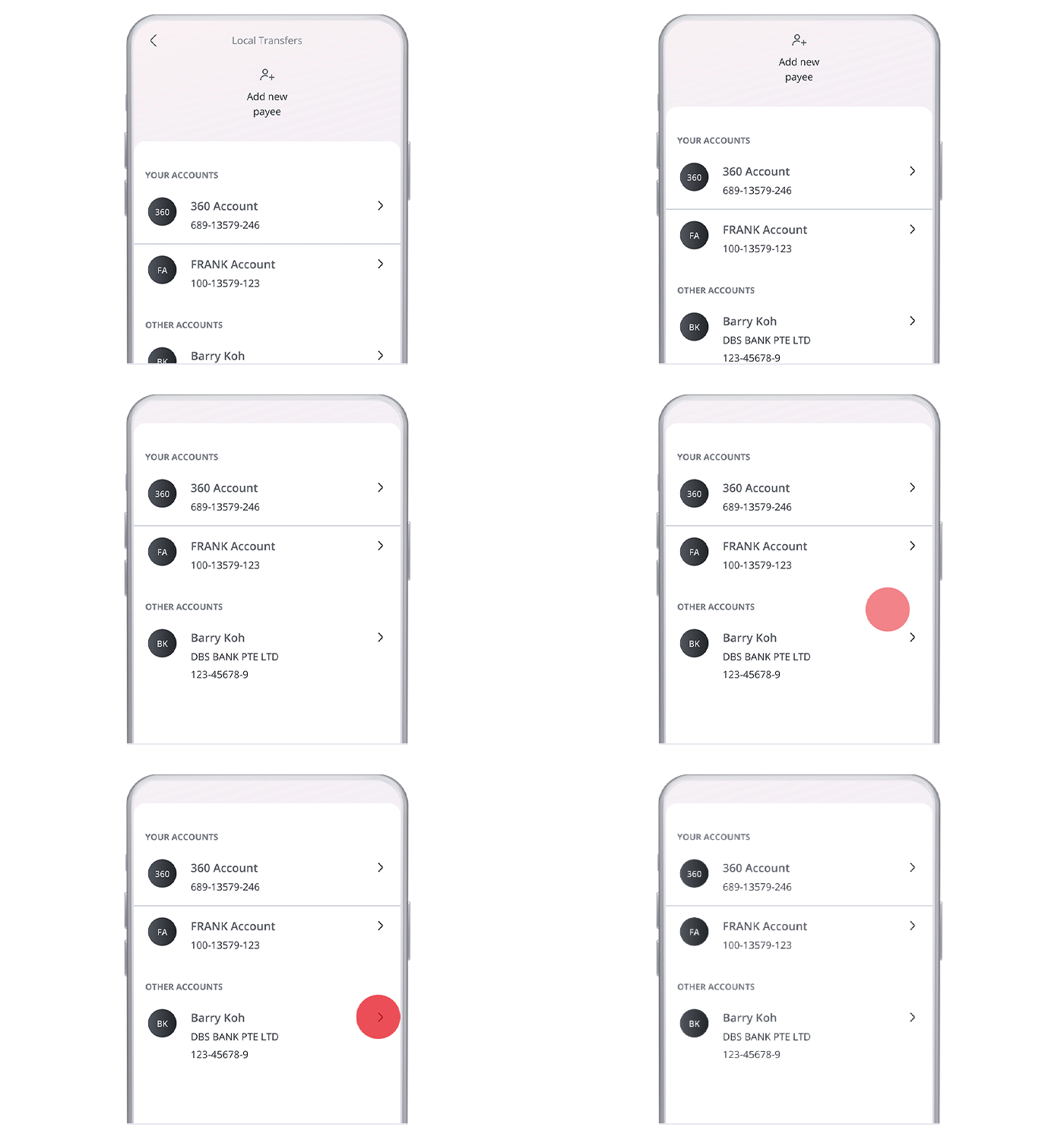
Select the payee
Choose the recipient from your local payee list (or add a new payee).
- 3
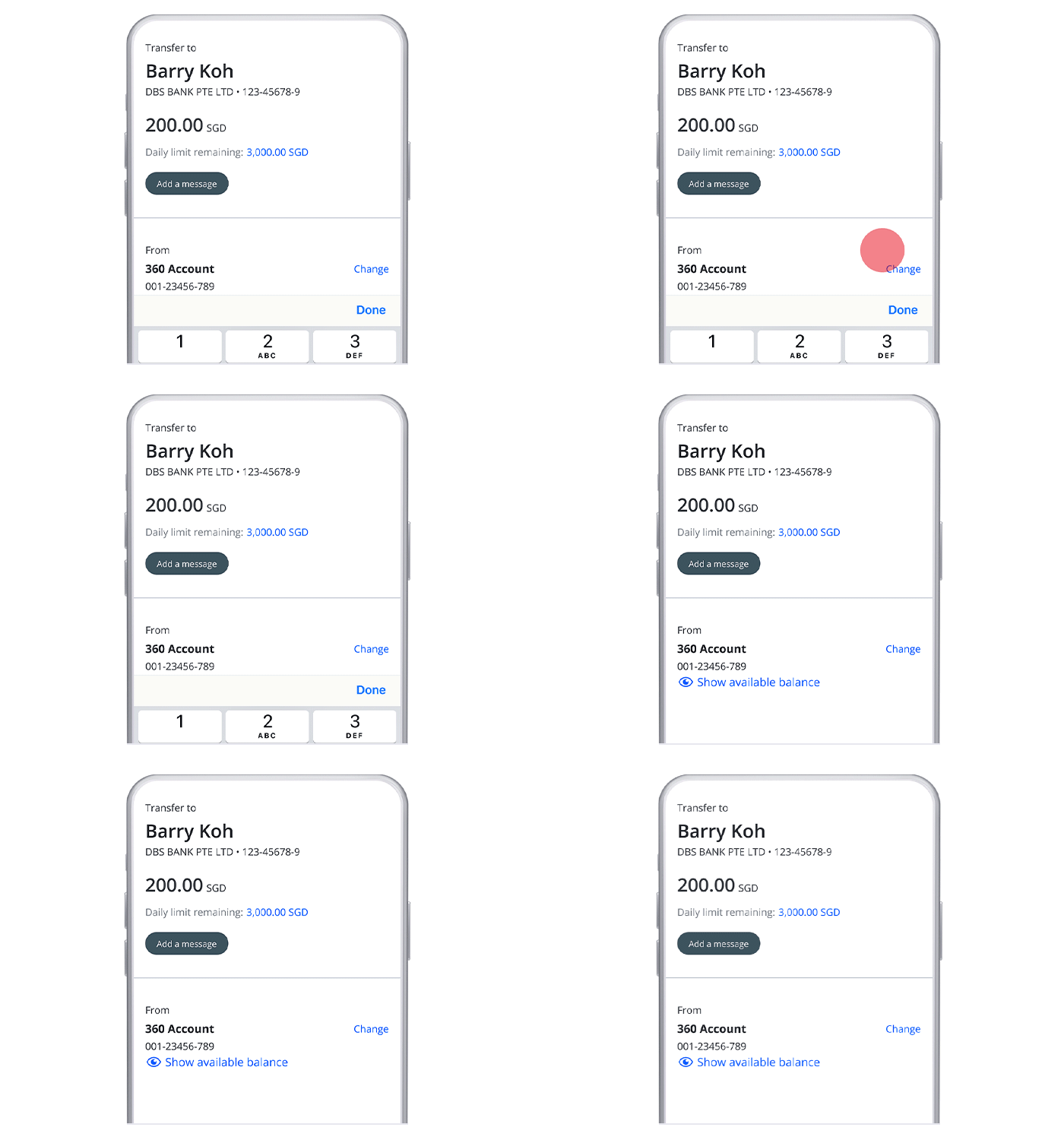
Enter the details
Enter the amount and details, choose "Transfer Now" or schedule it, and tap "Next".
- 4
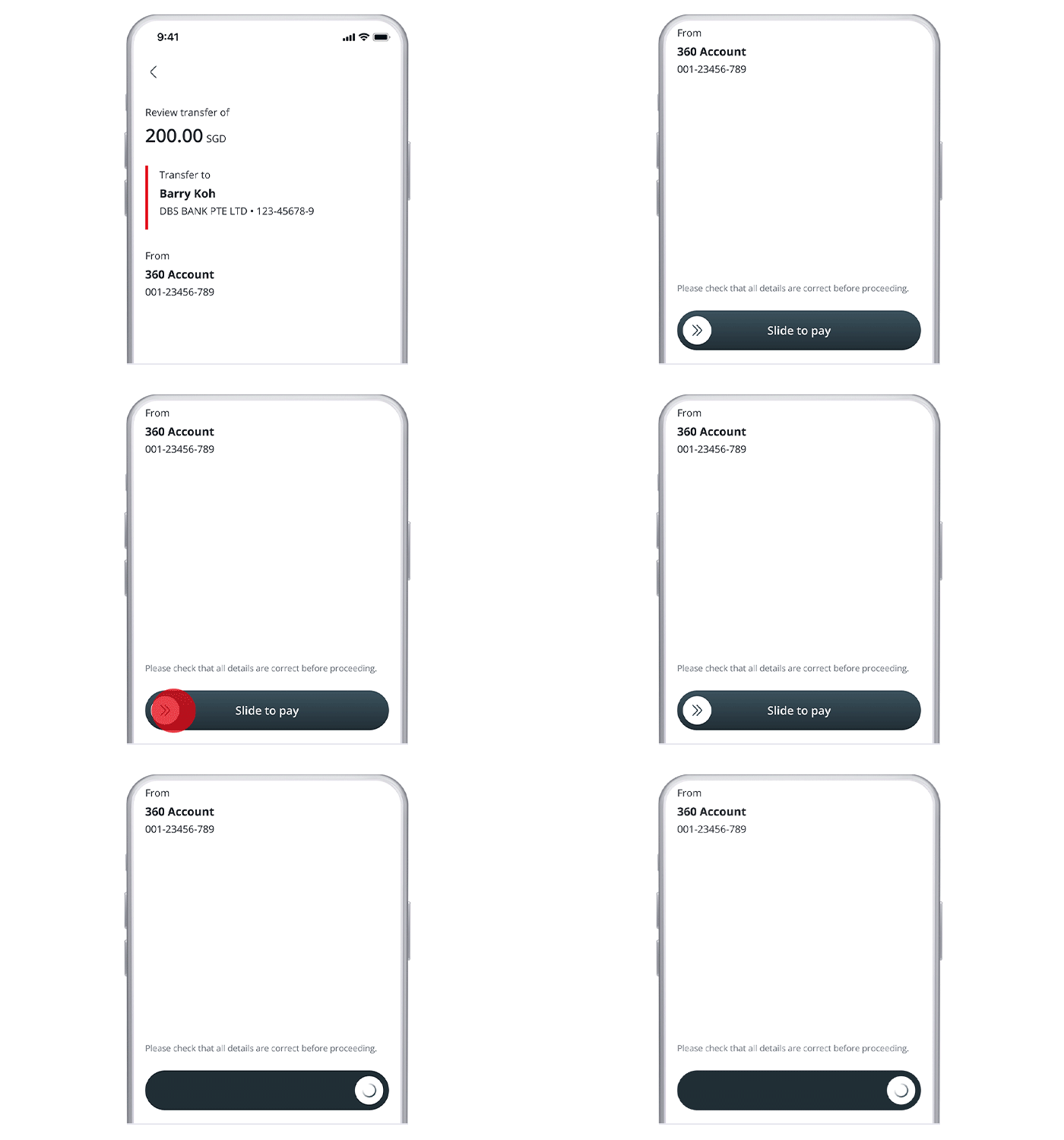
Review and slide to transfer
Review the details and "Slide to transfer".
- 5
Done
The transfer is submitted — to FAST-participating banks the money arrives almost instantly.
- 1
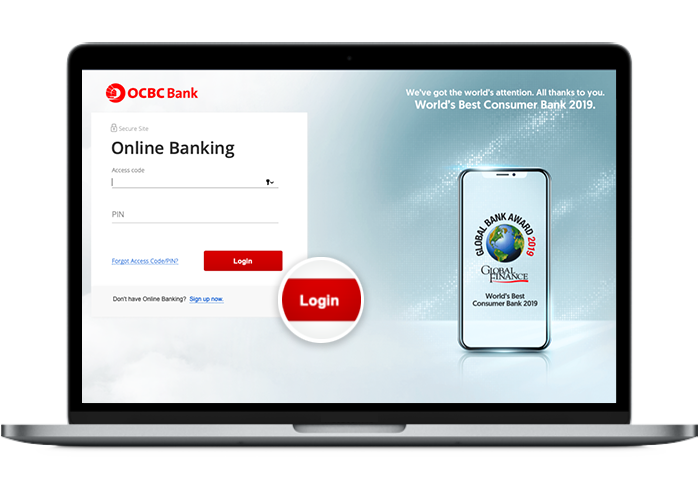
Log in to Online Banking
Log in to OCBC Online Banking with your access code and PIN.
- 2
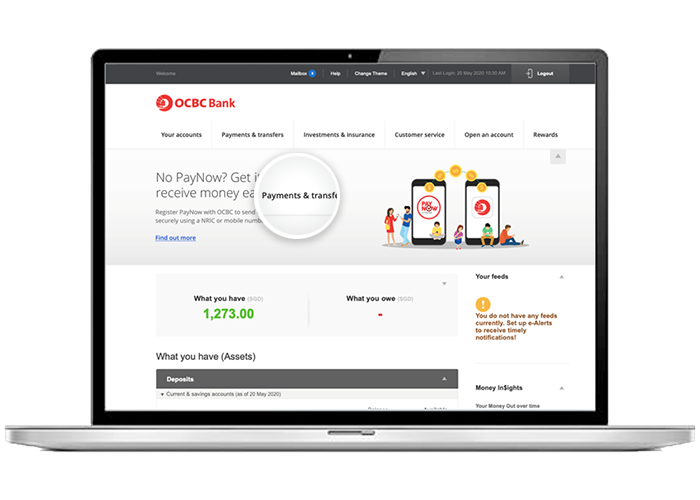
Open Payments & transfers
From the dashboard, open the "Payments & transfers" menu.
- 3
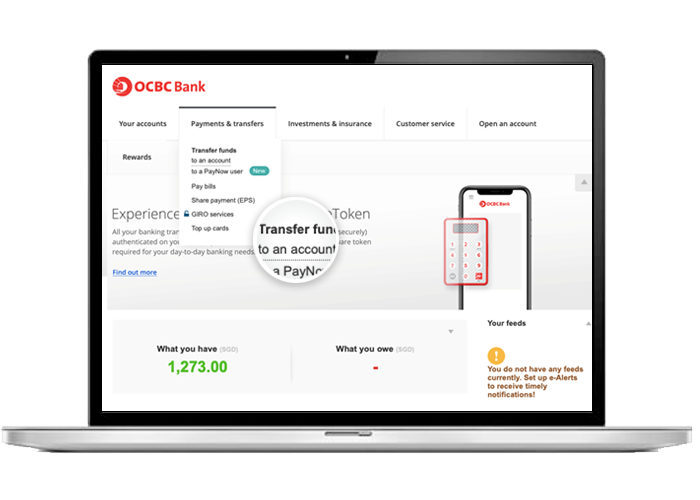
Choose Transfer funds → to an account
Under "Transfer funds", select "to an account".
- 4
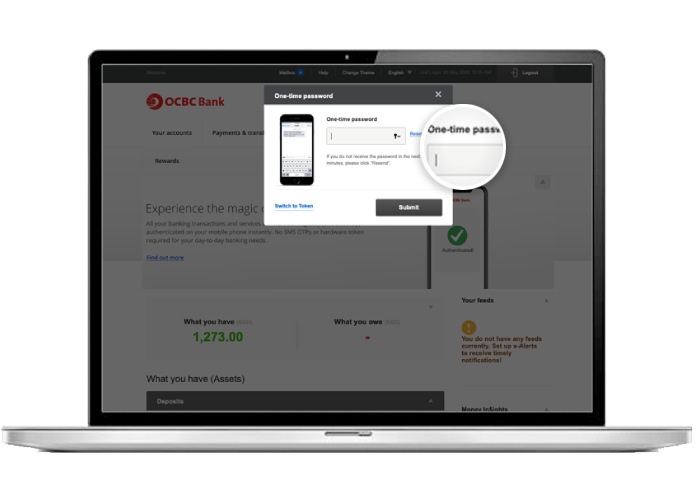
Authenticate with a one-time password
Enter the one-time password to verify it's you.
- 5
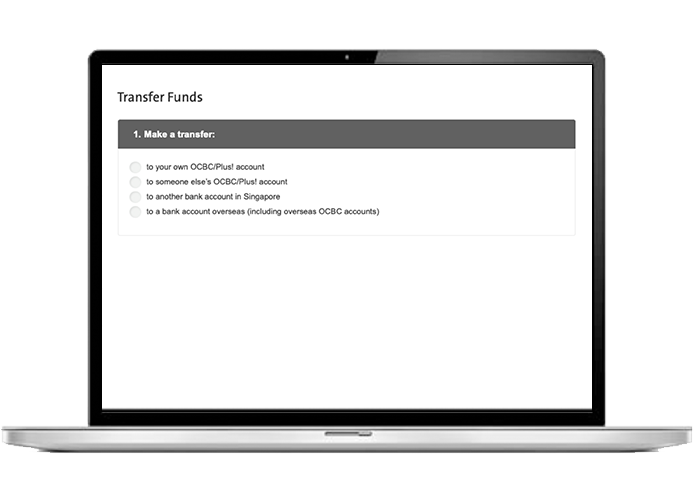
Select 'to another bank account in Singapore'
Under "Make a transfer", choose "to another bank account in Singapore".
- 6
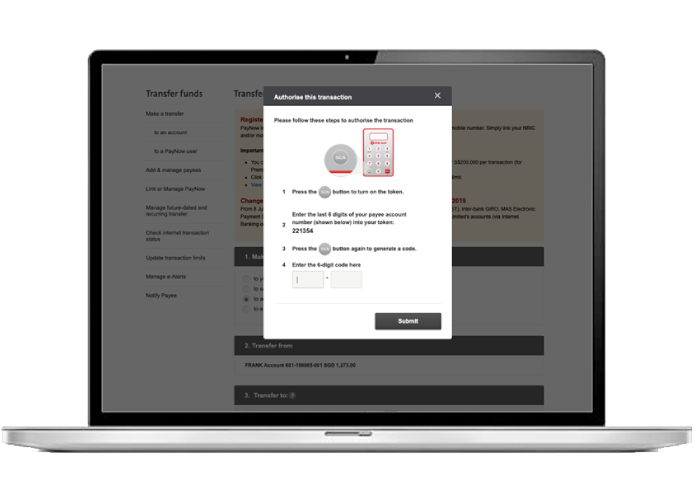
Authorise the payee with your token
Follow the on-screen steps to authorise the payee: enter the last digits of the payee account into your security token and key the generated code back in.
- 7
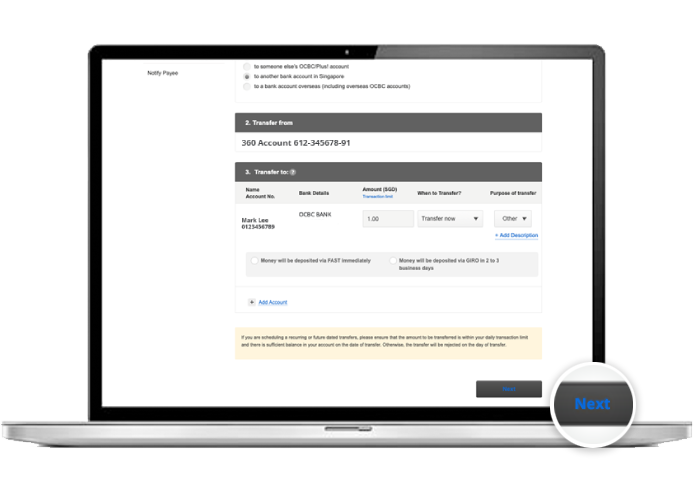
Enter the transfer details
Select the account to transfer from, enter the recipient, amount and purpose, then click "Next".
- 8
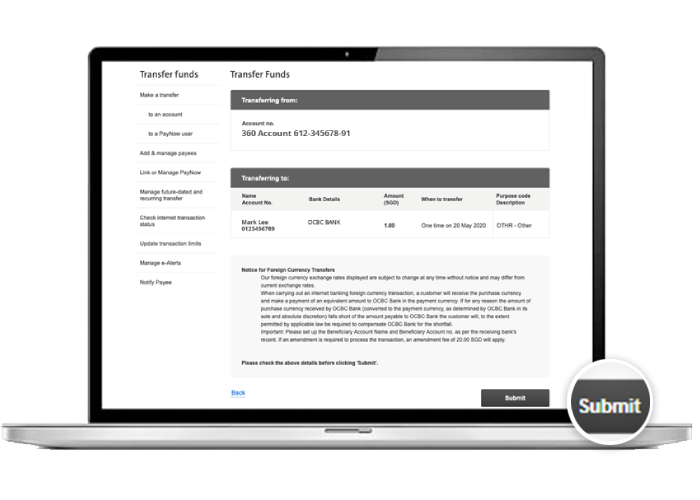
Review and submit
Review the transfer details and click "Submit".
- 9
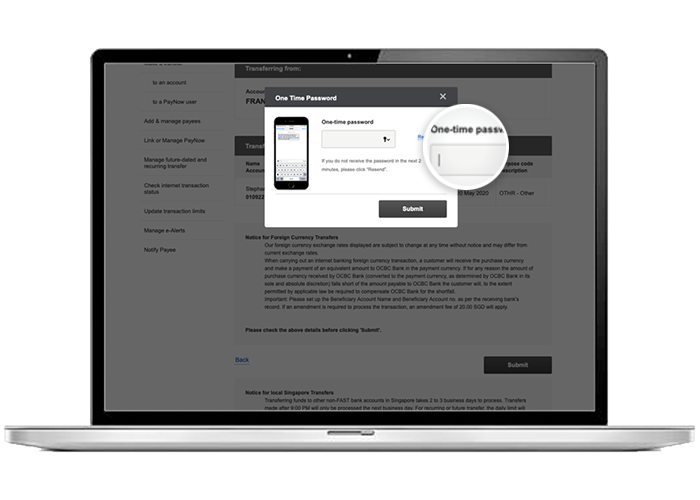
Confirm with a one-time password
Enter the one-time password to confirm the transfer.
- 10
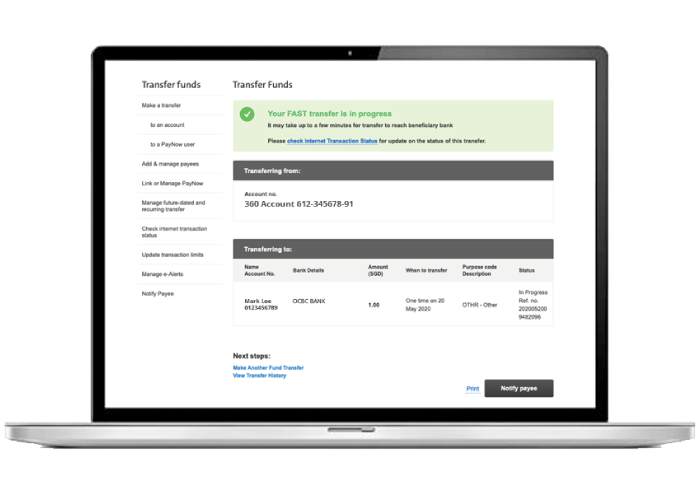
Done
Your FAST transfer is in progress and will reach the beneficiary bank within a few minutes.
Reference for assisting clients. Bank screens, steps and limits change often — always confirm the current process with OCBC Bank before advising the client.