How to Lock or Unlock Your OCBC Card
Temporarily lock a misplaced OCBC card in the OCBC app to stop your physical card being used — and unlock it the same way — in seconds, 24/7.
 Singapore
Agent guide. Use these steps to walk the client through the process — the screenshots show exactly what they’ll see on screen.
If the client has misplaced a card, they can lock it in the OCBC app to stop the physical card being used, then unlock it the same way once it turns up — no need to cancel the card. Locking and unlocking takes just a few seconds and is available 24/7.
Before you start
- The OCBC app
- The client's access code and PIN (or fingerprint ID / Singpass)
- The card to lock
💡 Tip: Locking takes about 5–10 seconds and works 24/7. A digital card added to a mobile wallet can still be used after the physical card is locked. If the card is lost or stolen rather than just misplaced, report it and order a replacement instead.
Frequently asked questions
How do I unlock the card again?
Go back to Card services → Lock/unlock cards and tap the slider again.
Does locking stop my mobile-wallet payments?
No — locking blocks the physical card; a digital card added to a mobile wallet still works.
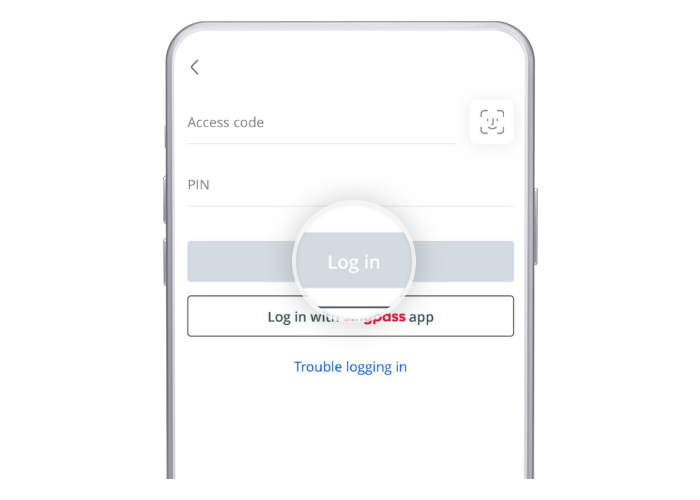
- 1
Log in to the app
Log in to the OCBC app with your access code and PIN, fingerprint ID, or Singpass.
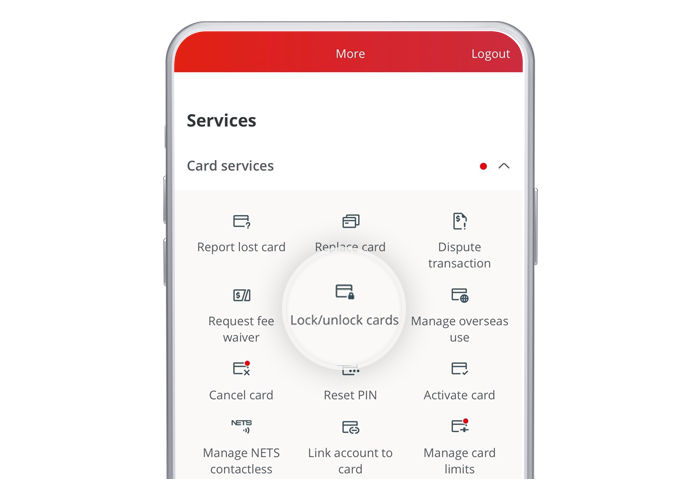
- 2
Open Lock / unlock card
Tap "More", then go to "Lock / unlock card" under Card services.
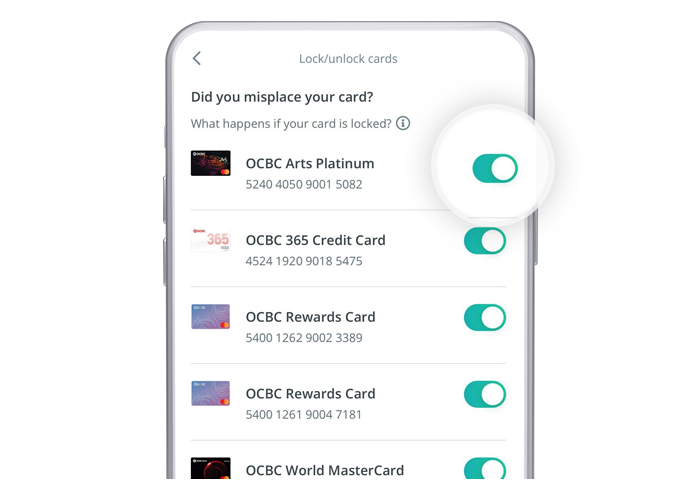
- 3
Lock or unlock the card
Select the card and tap the slider to lock or unlock it.
Reference for assisting clients. Bank screens, steps and limits change often — always confirm the current process with OCBC Bank before advising the client.