How to Change Your OCBC ATM & Debit Card Limit
Change the daily ATM withdrawal limit and debit card spending limit on your OCBC card — instantly — in the OCBC app or OCBC Internet Banking.
 Singapore
Agent guide. Use these steps to walk the client through the process — the screenshots show exactly what they’ll see on screen.
Your OCBC card has a daily ATM cash-withdrawal limit and a card spending limit. You can raise or lower either yourself in the OCBC app or on OCBC Internet Banking — changes are instant and protected by two-factor authentication.
Before you start
- The OCBC app, or access to OCBC Internet Banking
- Your access code and PIN (or fingerprint ID / Singpass on the app)
- Your OCBC card
💡 Tip: The ATM withdrawal limit and the card spending limit are separate — set each to suit the client. Changes made in the app or Internet Banking take effect immediately.
Frequently asked questions
What limit options are available?
The ATM withdrawal limit is typically S$1,000, S$3,000 or S$5,000 a day; debit card spending options run from S$0 (deactivated) up to S$50,000. Exact options can vary by card.
Does setting the limit to S$0 block the card?
Setting the spending limit to S$0 deactivates card spending. Raise it again the same way to re-enable the card.
- 1
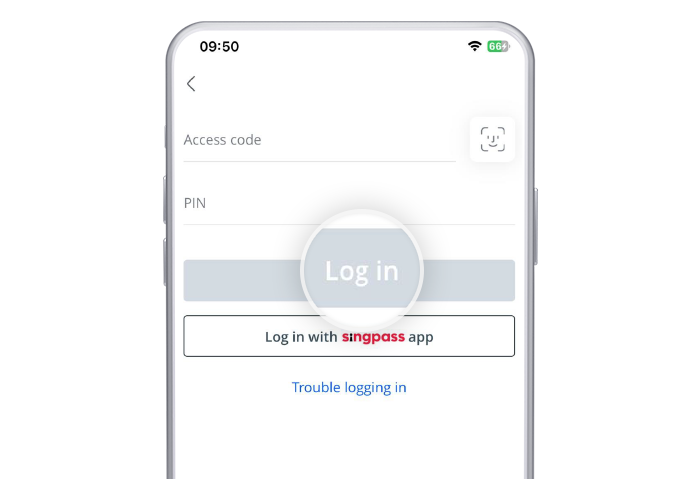
Open Card services
Tap "More" on the bottom navigation bar and go to "Card services".
- 2
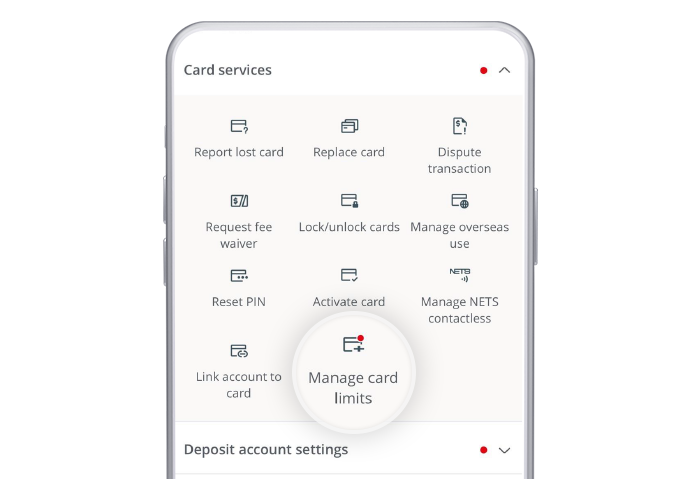
Open Manage card daily limit
Tap "Manage card daily limit".
- 3
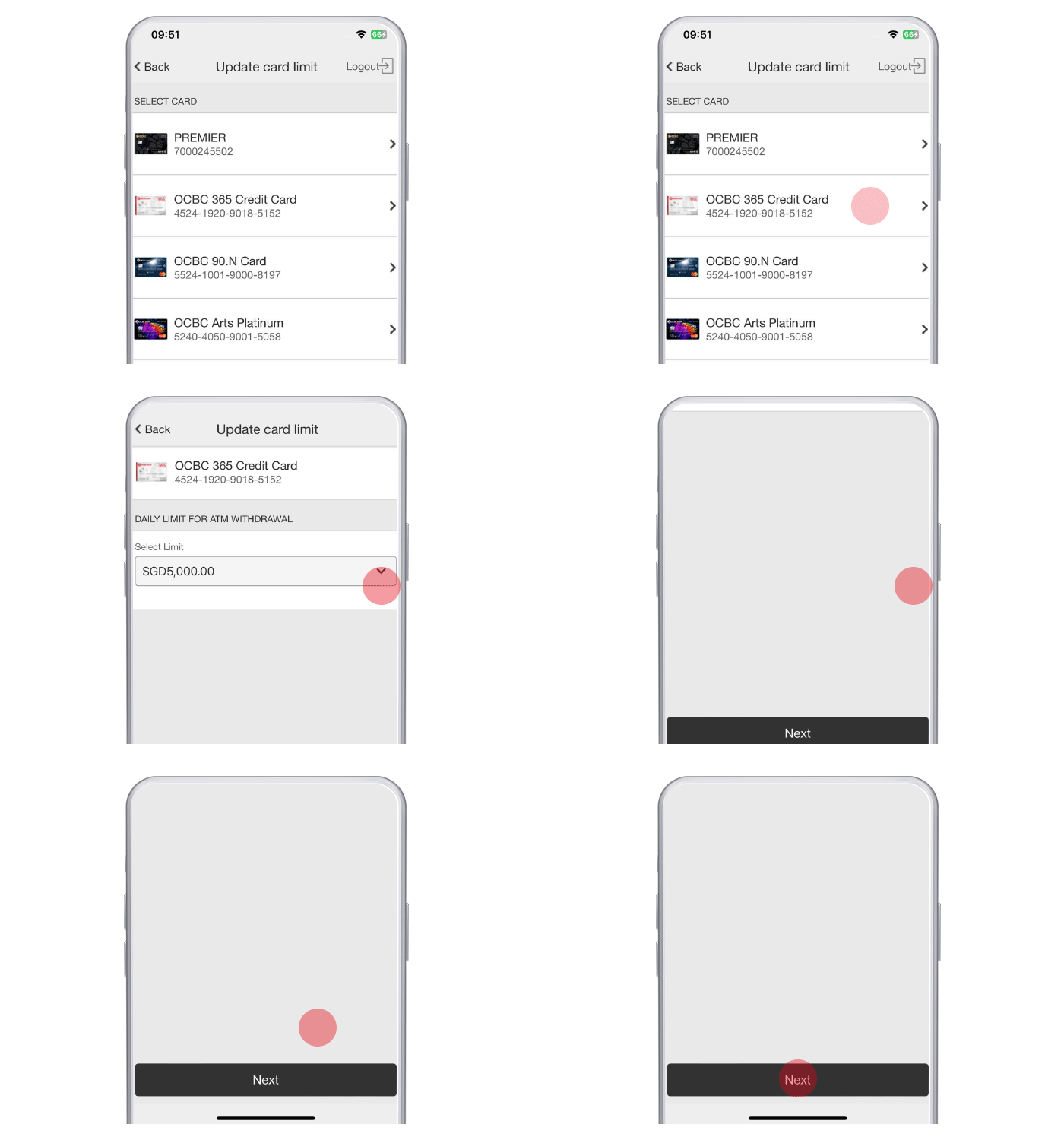
Select the card and update limits
Select your card, update its ATM withdrawal and card spending limits, and tap "Next".
- 4
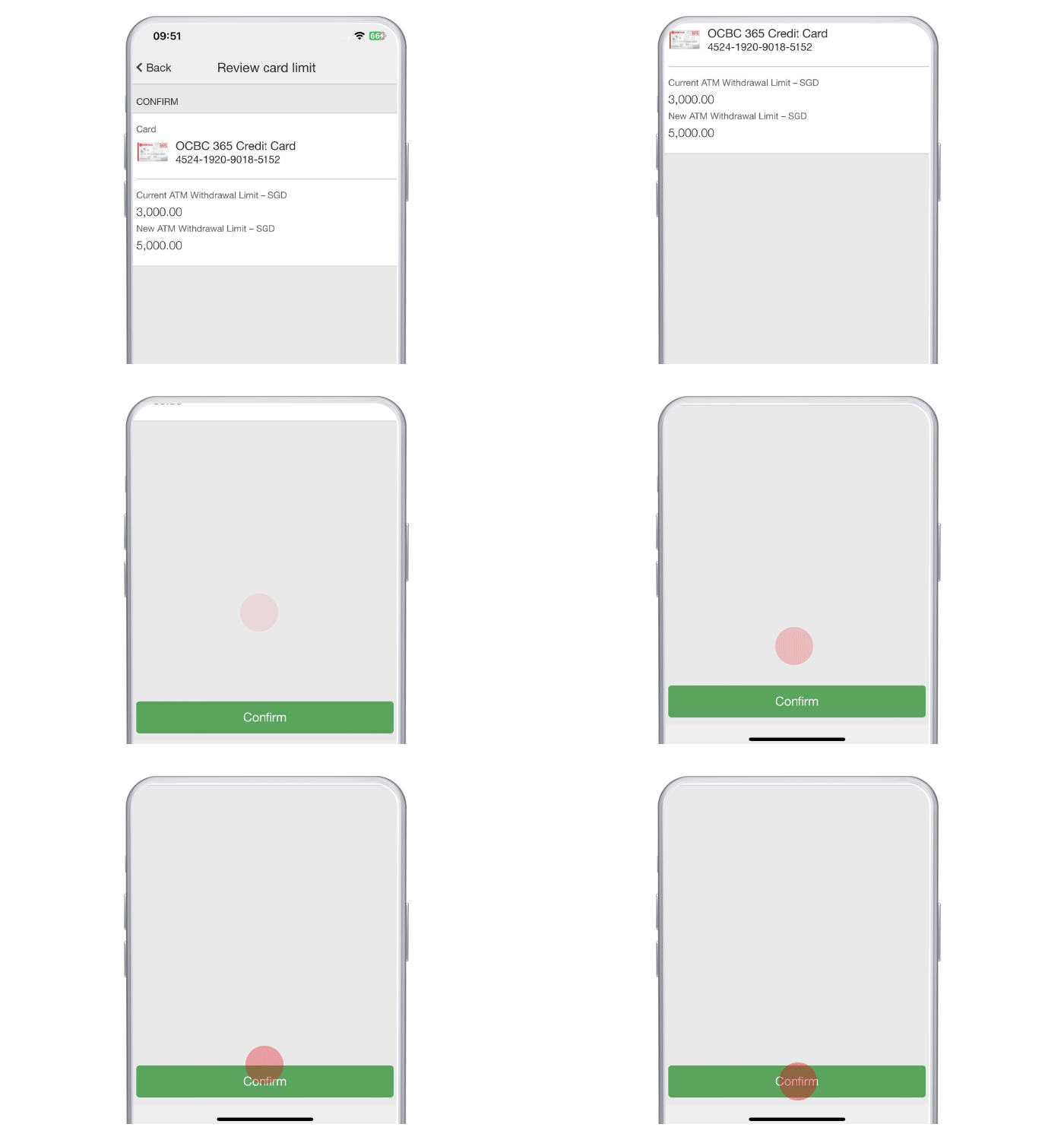
Review and confirm
Review the new limits and confirm.
- 5
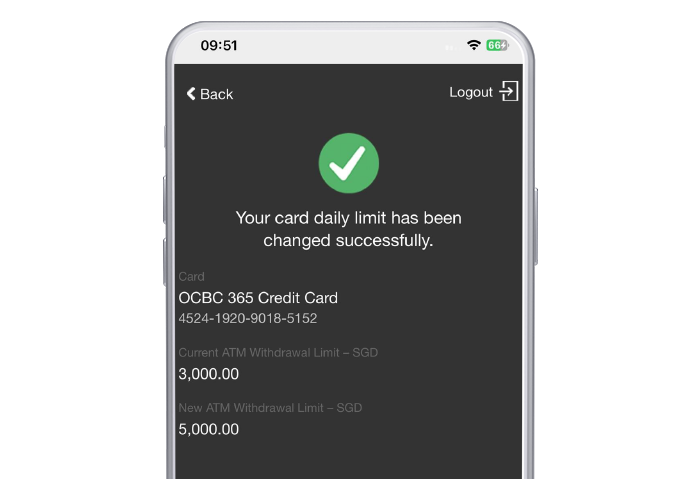
Done
The change is applied and takes effect immediately.
- 1
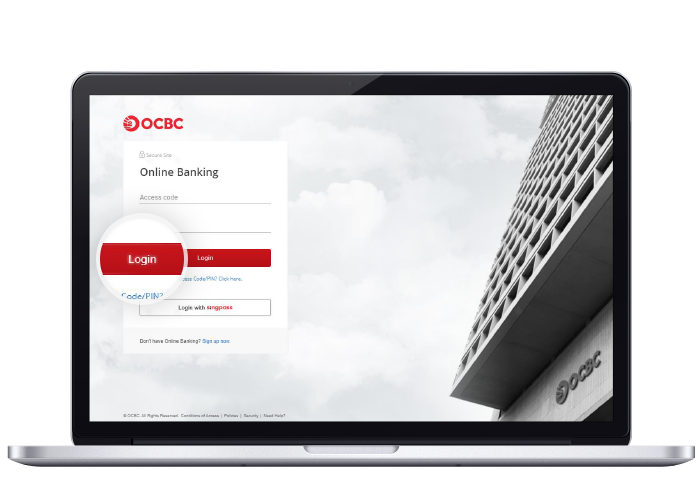
Log in to Internet Banking
Log in to OCBC Internet Banking with your access code and PIN, or Singpass.
- 2
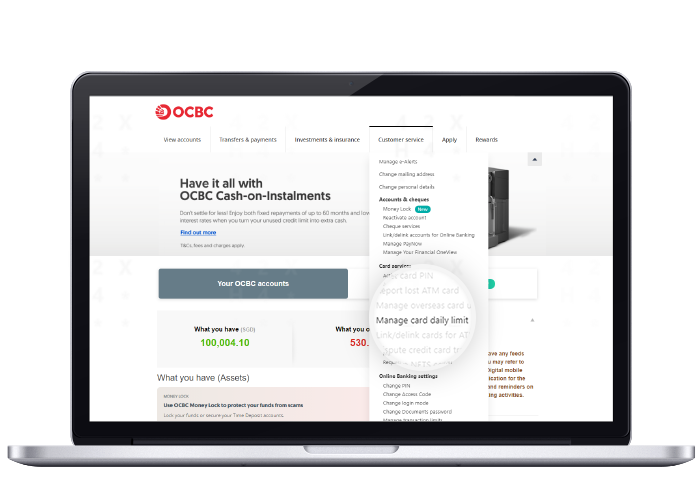
Open Manage card daily limit
Click "Customer service", then select "Manage card daily limit" under Card services.
- 3
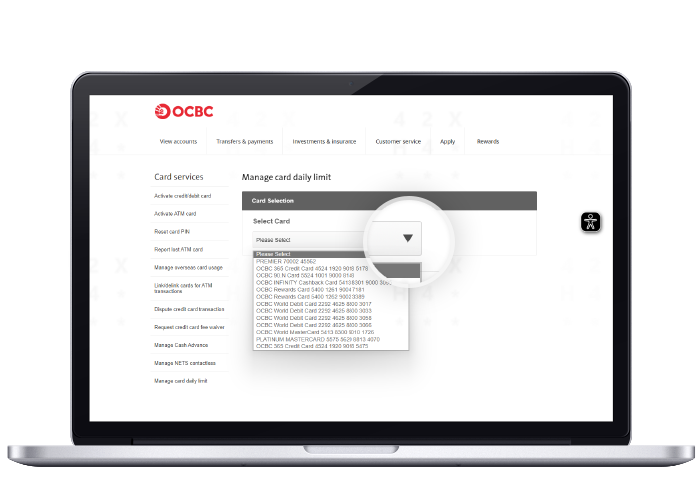
Select the card
Choose the card you want to change.
- 4
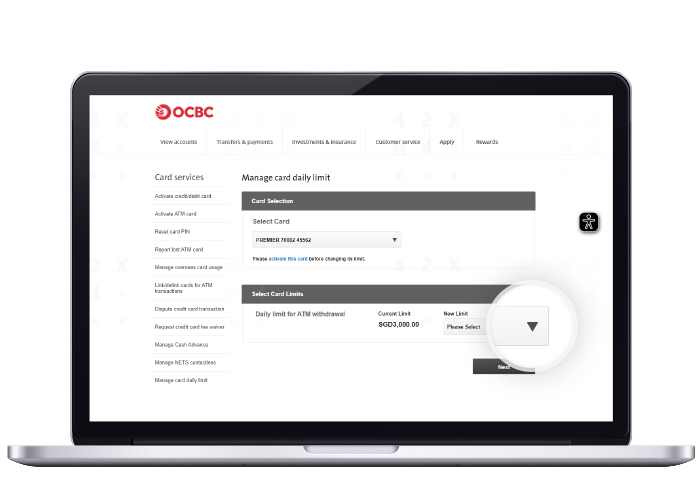
Update the limits
Update your new withdrawal and spending limits and click "Next".
- 5
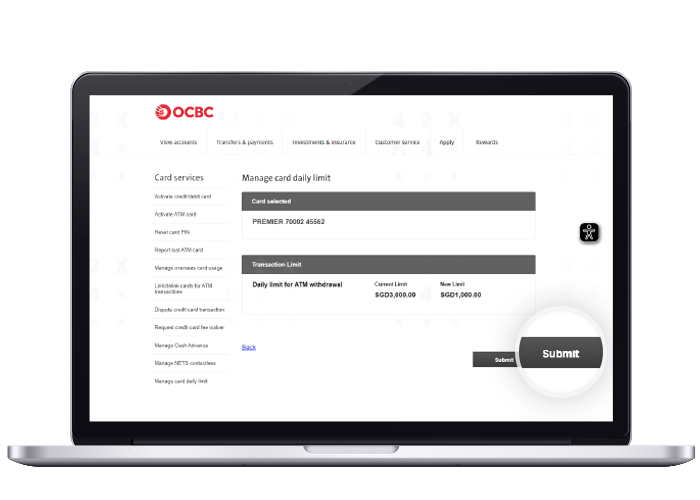
Review and confirm
Review the new limit settings on the confirmation screen.
- 6
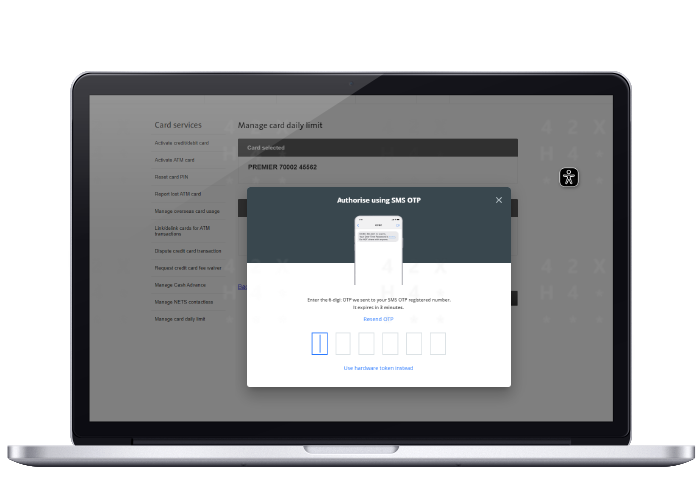
Authorise with OneToken
Approve the change with OCBC OneToken on your mobile device.
- 7
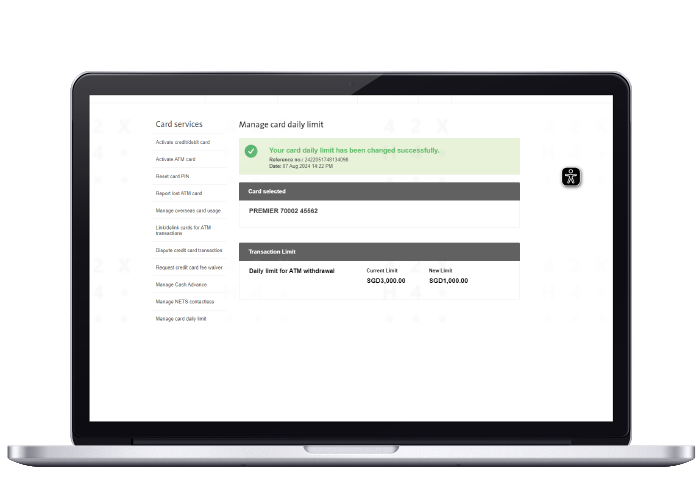
Done
The change is complete and effective immediately.
Reference for assisting clients. Bank screens, steps and limits change often — always confirm the current process with OCBC Bank before advising the client.